Agent Management — Register, Configure, and Monitor Your AI Agents
This section explains how to register AI agents in TraptureIQ, configure their connections, manage their lifecycle, and control who can access them.
What is Agent Management?
Agent Management is where you connect your existing AI agents to TraptureIQ. You don't need to rebuild your agents or add any code — you simply "register" them by providing their endpoint URL and a few configuration details.
Once registered, your agents get instant access to:
- A unified Chat interface for your entire team
- Security monitoring via AgentGuard
- Observability through Traces, Logs, and Sessions
- Evaluation tools for quality and security testing
- Cost tracking and analytics
Who can manage agents? Only Tenant Admins can register, edit, and deactivate agents. Tenant Users can view and chat with agents they've been assigned.
The Agent Management Dashboard
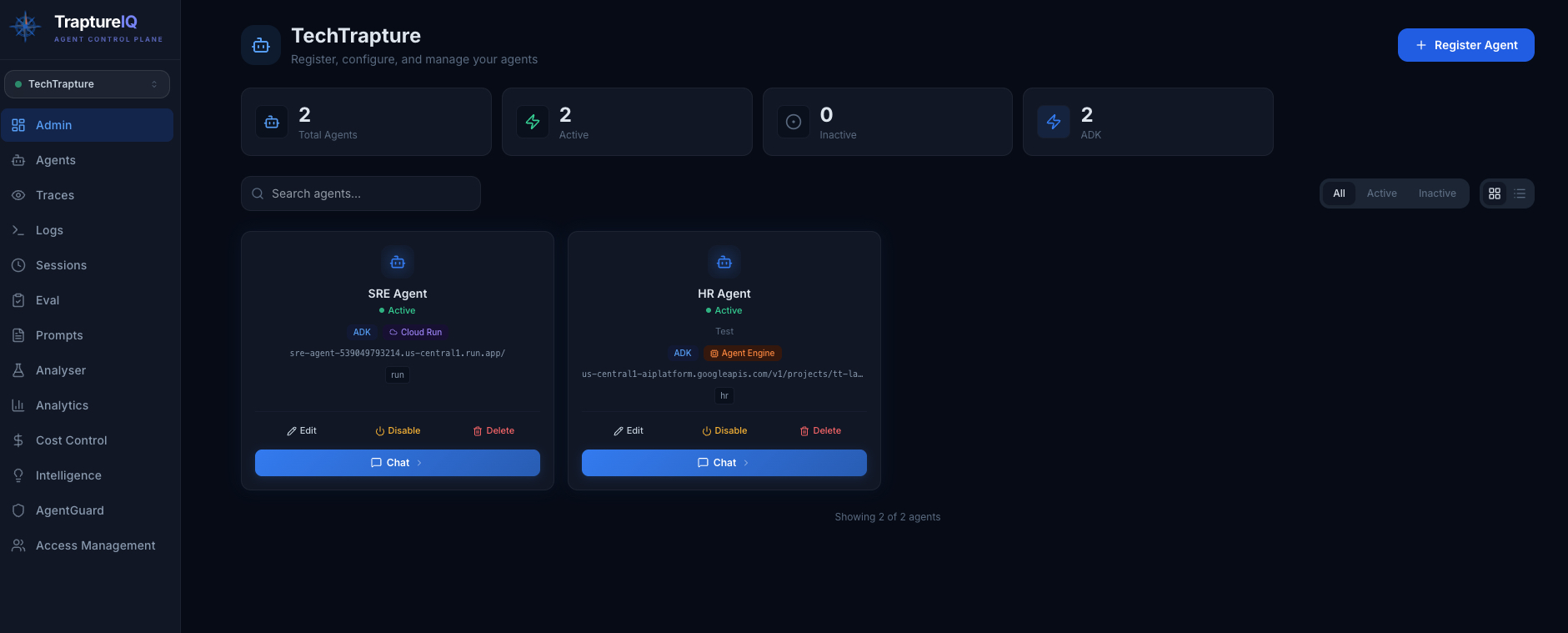
Tenant Admins access this via the Admin item in the sidebar. The dashboard shows:
| Element | What It Shows |
|---|---|
| Agent Count | Total, active, and inactive agents in your workspace |
| Framework Breakdown | Number of registered Google ADK agents |
| Agent Grid/List | All registered agents with their status, framework, deployment type, and quick actions |
| Search & Filters | Search by name/description and filter by status (Active/Inactive) or framework |
| + Register Agent | Button to start registering a new agent |
You can toggle between Grid view (cards) and List view (table) using the icons in the toolbar.
Quick Reference
| Task | Guide |
|---|---|
| Register a new agent | Registering an Agent |
| View and browse your agents | Viewing Your Agents |
| Edit or deactivate an agent | Editing or Deactivating |
| Understand the supported framework and deployment types | Supported Framework |
| Set up authentication for Agent Engine | Authentication Setup |
| Control which users can access each agent | Agent Access Control |
Agent Lifecycle at a Glance
- Register — Provide name, endpoint URL, framework, and authentication details
- Test — Use the Test Connection button to verify connectivity
- Activate — Once the connection test passes, save the agent. It's immediately available for chat.
- Monitor — View traces, logs, and analytics as your team uses the agent
- Evaluate — Run quality and security evaluations
- Update — Edit configuration as needed (endpoint changes, prompt updates)
- Deactivate — Toggle off agents that should no longer be available to users