User & Role Management — Control Who Can Do What
This section explains how Tenant Admins invite team members, assign roles, and control which parts of the platform each person can access. It covers everything from sending the first invite to configuring fine-grained permissions.
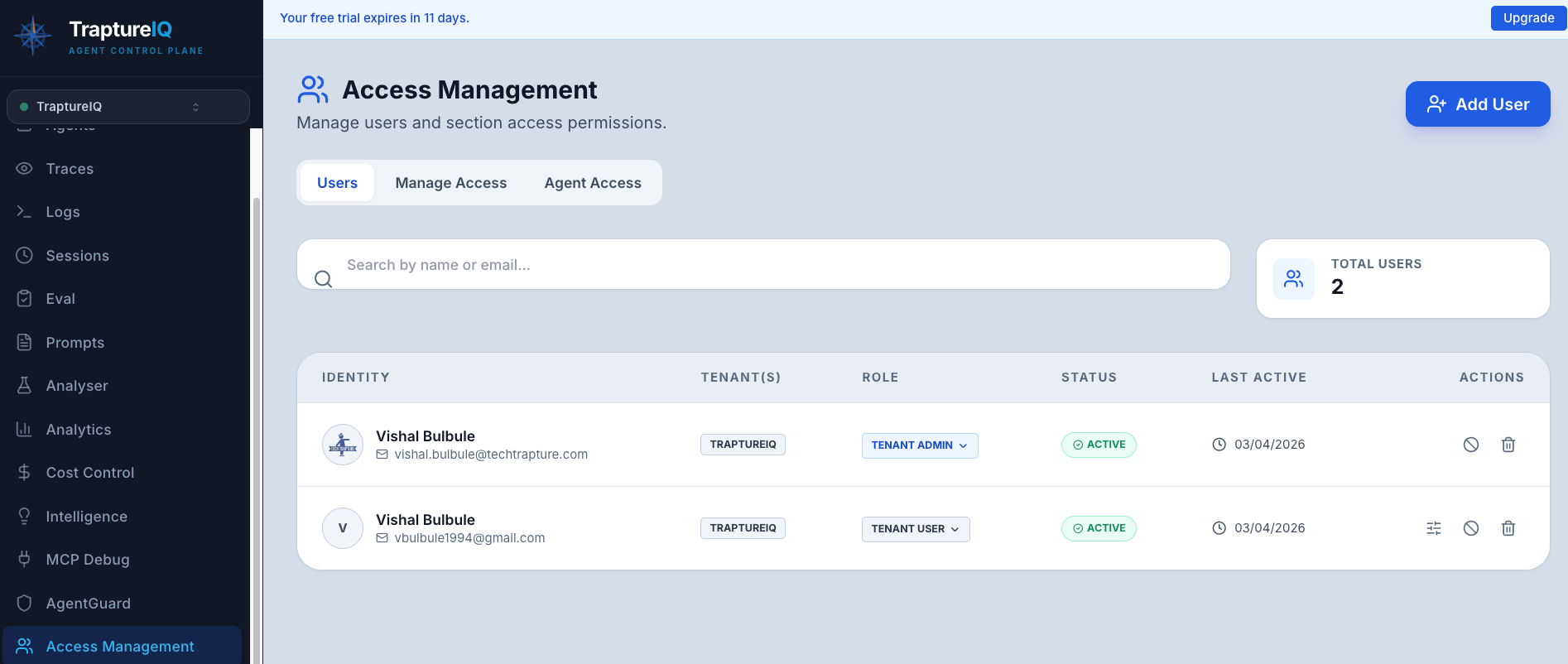
What is User Management?
User Management is how you bring your team into TraptureIQ and control their experience. As a Tenant Admin, you can:
- Invite colleagues to join your workspace via email
- Assign roles (Admin or User) that determine their overall access level
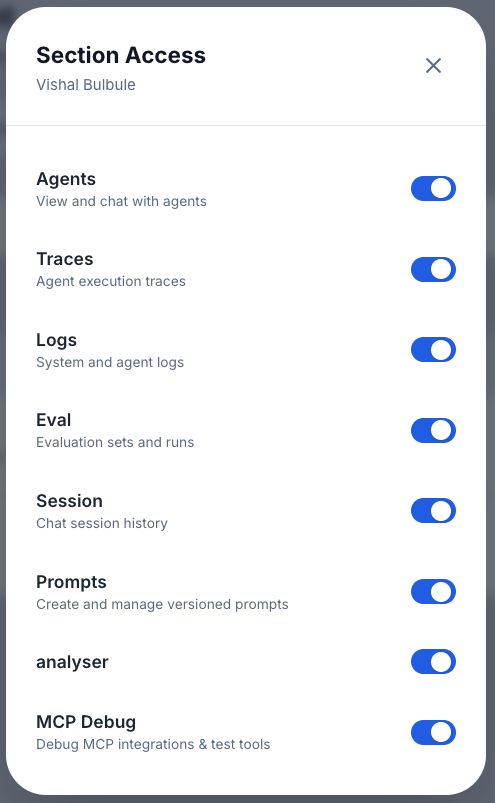
- Configure section access — choose which sidebar modules each user can see
- Control agent access — choose which specific agents each user can chat with
- Manage user lifecycle — disable, re-enable, or delete users as needed
Why it matters: In a team environment, not everyone needs access to everything. Security best practice is to give each person exactly the access they need — no more, no less. TraptureIQ's access control system makes this easy.
How Access Control Works
TraptureIQ uses a two-tier access control system:
Tier 1: Role-Based Access
Every user has a role that determines their base access level:
- Tenant Admin — Full access to everything. Can manage users, agents, billing, and security.
- Tenant User — Limited access. Can only use modules that an Admin has enabled for them.
Tier 2: Fine-Grained Permissions
Within the Tenant User role, admins can further customize access at two levels:
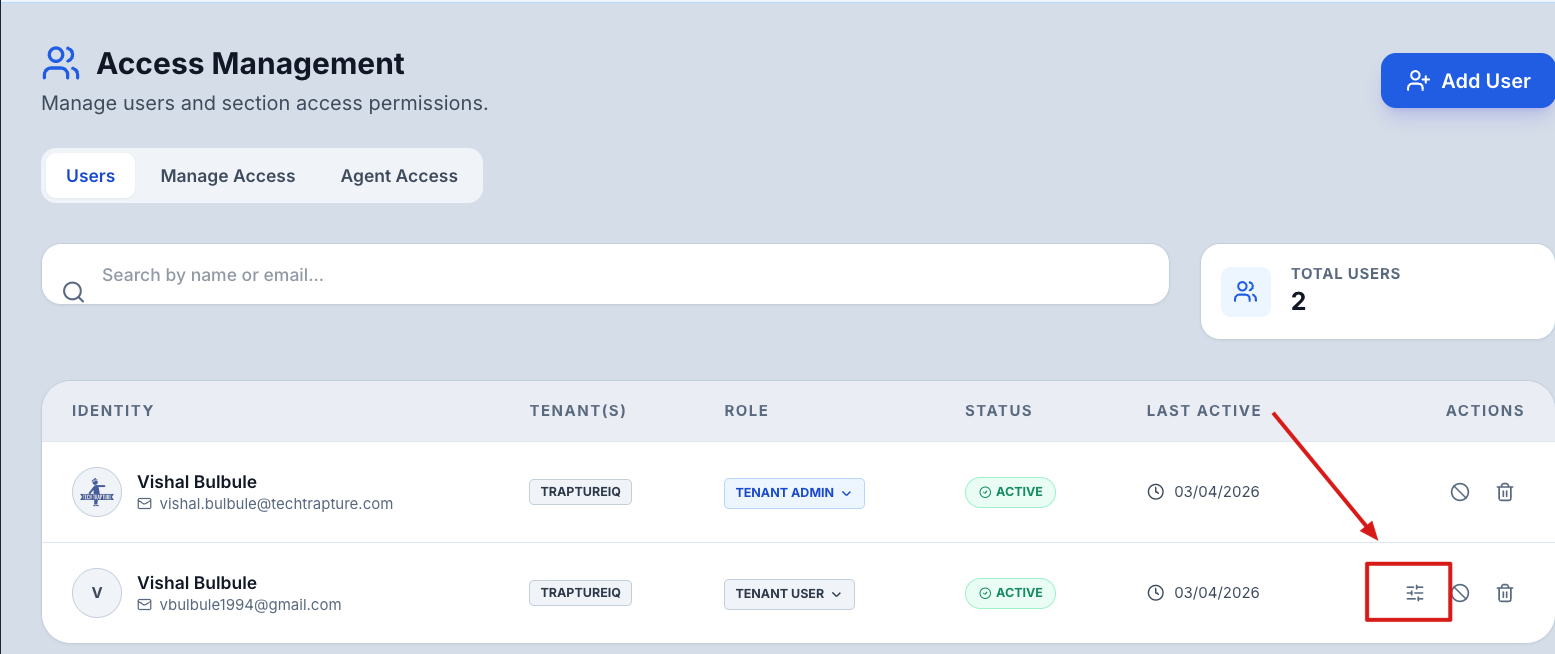
- Section-Level Access — Controls which sidebar modules a user can see (e.g., Traces, Logs, Eval)
- Agent-Level Access — Controls which specific agents a user can chat with
Visual summary:
Tenant Admin → Access to everything (no restrictions)
Tenant User → Access determined by:
  ├── Section Access (which modules can they see?)
  └── Agent Access (which agents can they use?)
Where to Find User Management
Navigate to Access Management in the sidebar. This section contains three tabs:
| Tab | What It Does |
|---|---|
| Users | View all users, invite new ones, change roles, configure section access, disable/delete users |
| Agent Access | Control which users can see and chat with which agents (per-user, per-agent toggles) |
| Permission Matrix | View and configure tenant-wide default permissions for new users |
Quick Reference
| Task | Guide |
|---|---|
| Invite a new team member | Inviting Users |
| Change roles, disable, or delete users | Managing Users |
| Understand roles and permissions in detail | Roles |
| Enable/disable sidebar sections per user | Section-Level Access |
| View the full permission matrix | Permission Matrix |
| Understand subscription limits | Subscription & Feature Gating |
| Manage API keys, AgentGuard, and tenant settings | Settings |
| Control which agents each user sees | Agent Access Control |
Recommended Setup Order for New Workspaces
- Set Permission Matrix defaults — Configure which sections should be enabled by default for new users (Permission Matrix)
- Invite your team — Send invitations with appropriate roles (Inviting Users)
- Fine-tune section access — Adjust per-user if some users need different sections than the defaults (Section-Level Access)
- Configure agent access — Restrict which agents specific users can see if needed (Agent Access Control)