Inviting Users — Add Team Members to Your Workspace
Access: Tenant Admins only
This guide walks you through inviting colleagues to join your TraptureIQ workspace.
How to Invite a User
Step 1: Open Access Management
Navigate to Access Management in the sidebar.
Step 2: Click Invite User
Click the Invite User button (the button with the UserPlus icon) at the top of the page.
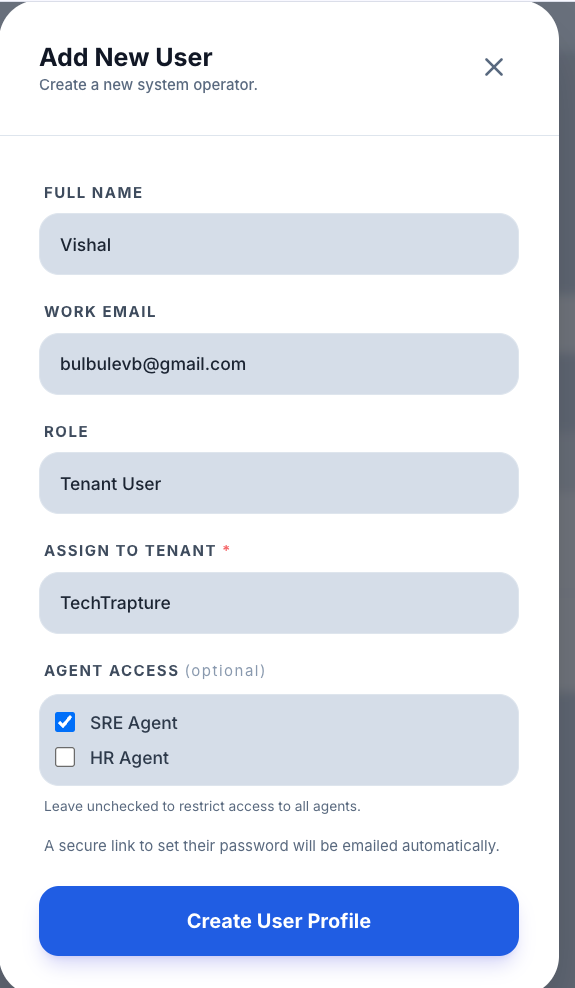
Step 3: Fill in the Invitation Form
| Field | What to Enter |
|---|---|
| Email Address | The email address of the person you want to invite. They'll receive the invitation at this address. |
| Role | Choose the role for this user: |
| Tenant Admin — Full access to all sections and admin features (managing agents, users, billing, security) | |
| Tenant User — Standard access, limited to sections you configure |
Step 4: Send the Invite
Click Send Invite.
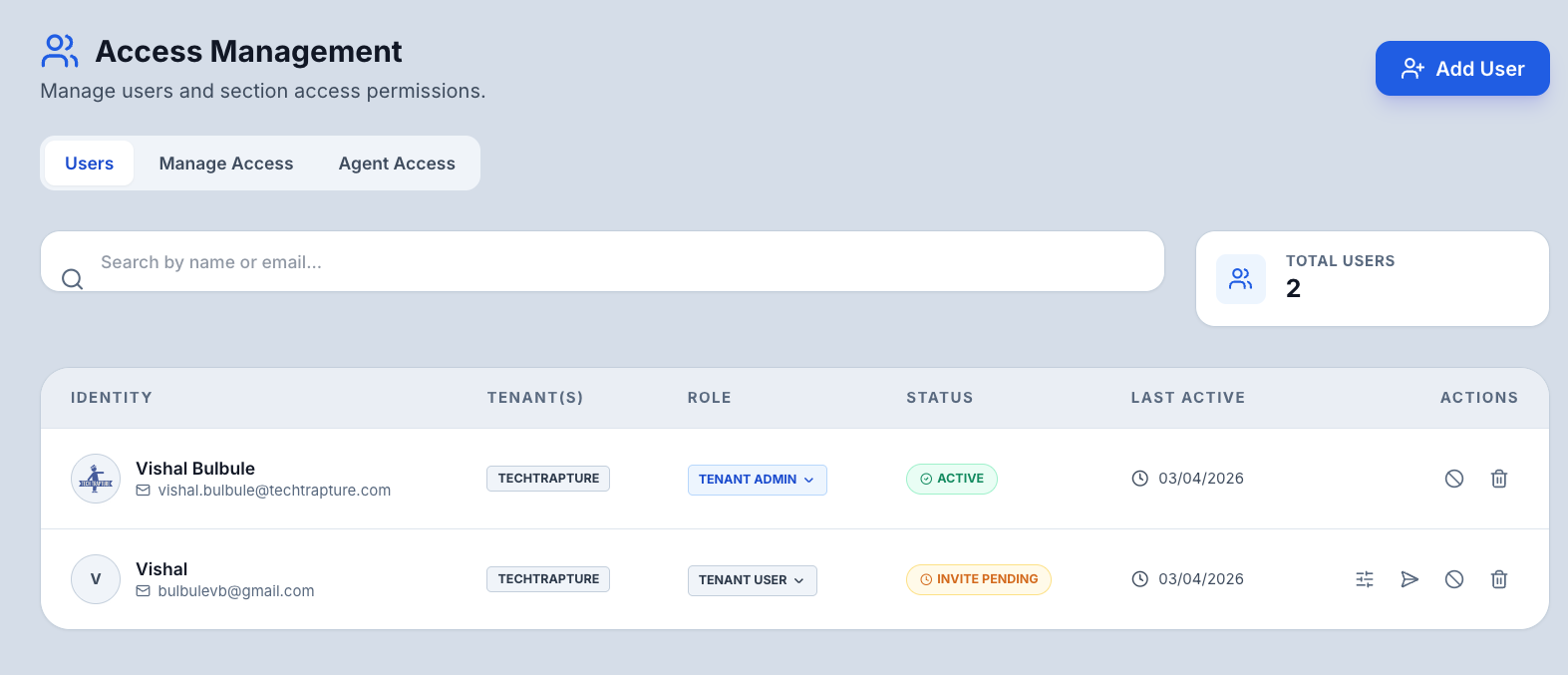
Expected result: The system sends an invitation email with a registration link. The user appears in your user list with a "Invite Pending" status badge.
What the Invited User Experiences
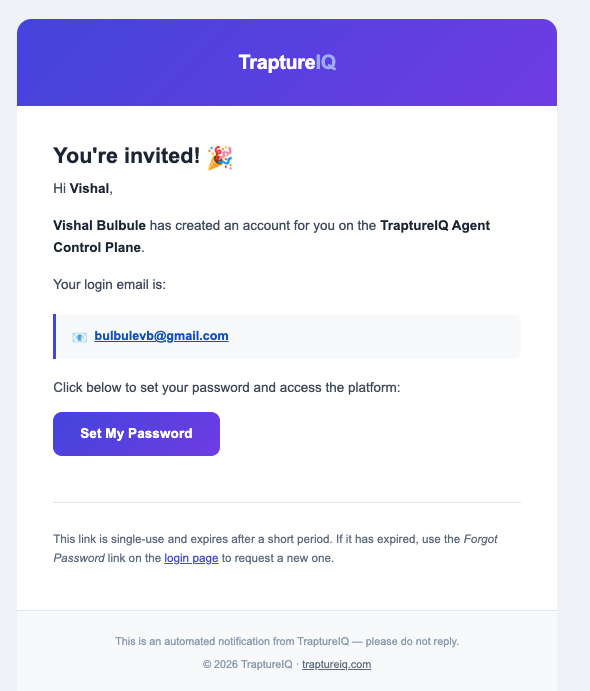
- They receive an invitation email from TraptureIQ with their login email address displayed.
- They click the Set My Password button in the email.
- They set their password and log in with their email and password.
- They are automatically linked to your Tenant with the role you assigned.
- They land on the Agents page — ready to start using the platform.
Note: The invitation link is single-use and expires after a short period. If it has expired, the user can use the Forgot Password link on the login page to request a new one.
Managing Pending Invites
| Action | How | When to Use |
|---|---|---|
| View pending invites | Look for users with "Pending" status in the user table | To check who hasn't accepted yet |
| Resend invite | Click the Resend action on the pending user's row | If the original email was lost, expired, or went to spam |
| Cancel invite | Delete the pending user | If you sent the invite to the wrong person |
Invite links are single-use and expire after a short period. If someone tries to use an expired link, use Resend to generate a fresh one.
What Happens After They Accept
Once the user accepts the invite and signs in:
- Their status changes from Pending to Active.
- They can access sections based on their role and your section access configuration.
- If invited as a Tenant User, they see only the sidebar sections you've configured for them.
- By default, new Tenant Users can see all agents. Use Agent Access to restrict which agents they can interact with.
- If invited as a Tenant Admin, they have immediate full access to all sections.
Tips for Beginners
- Start with Tenant User role — When in doubt, invite people as Tenant Users. You can always upgrade them to Admin later.
- Configure section defaults first — Before inviting many users, set up your Permission Matrix defaults. This saves you from configuring each user individually.
- Check spam folders — If an invited user says they didn't receive the email, ask them to check their spam/junk folder.
- Use resend — If an invite has been sitting for more than a few days, resend it to generate a fresh link.