Section-Level Access — Per-User Module Permissions
Access: Tenant Admins only
Even within the Tenant User role, you can grant or restrict access to specific platform modules on a per-user basis. This means two Tenant Users can have completely different sidebar views.
What is Section-Level Access?
When you invite someone as a Tenant User, they don't automatically see all sidebar modules. Instead, you (as the Admin) control which modules appear in their sidebar using per-user toggles.
Why it matters:
- A developer debugging agents needs Traces and Logs, but maybe not Prompts
- A business user chatting with agents doesn't need MCP Debug or Eval
- A QA tester needs Eval access but maybe not Analytics
- Reducing visible modules creates a cleaner, less overwhelming experience for each user
How to Configure Section Access
Step 1: Open Access Management
Navigate to Access Management in the sidebar.
Step 2: Find the User
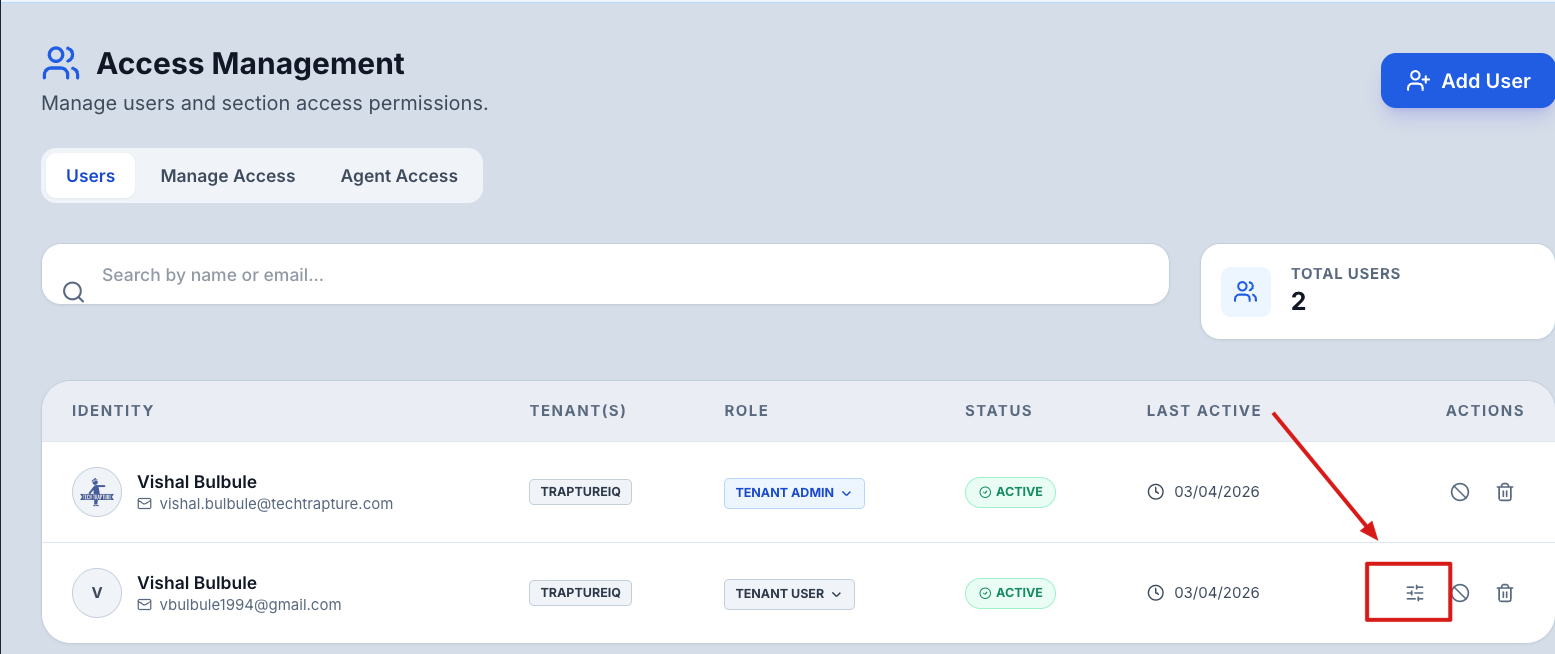
Locate the user in the user list. Use the search bar if needed.
Step 3: Open Section Access Configuration
Click the Section Access button (slider icon) on the user's row.
Step 4: Configure Toggles
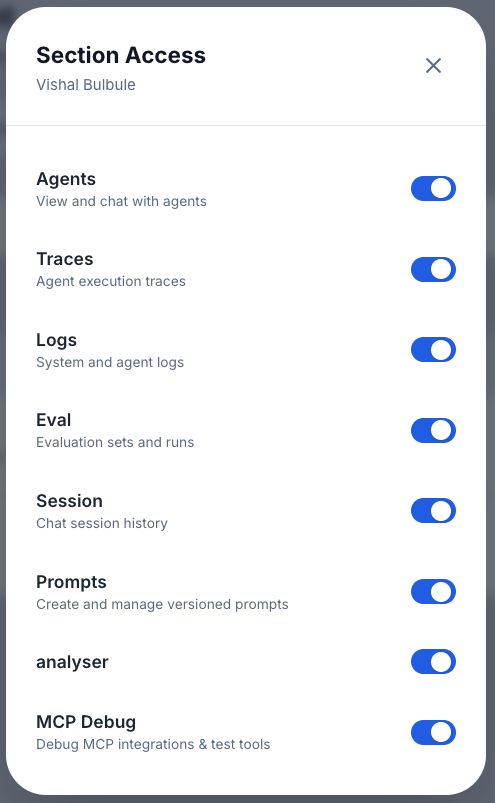
A modal appears showing toggles for each configurable section:
| Section | What the User Gets When Enabled |
|---|---|
| Agents | Can browse registered agents and start chats with assigned agents |
| Traces | Can view agent execution traces, waterfall timelines, and user journeys |
| Logs | Can view system and agent logs with severity filtering and CSV export |
| Eval | Can create and run custom, security, and load test evaluations |
| Session | Can view chat session history with statistics and filtering |
| Prompts | Can create, edit, version, and analyze prompt templates |
| MCP Debug | Can add MCP connections, browse tools, and run test executions |
Step 5: Toggle and Save
- Toggle each section ON (enabled) or OFF (disabled).
- Changes are saved immediately per toggle — no separate save button needed.
- The user's sidebar updates on their next page load.
Sections That Cannot Be Configured
Admin-Only Sections
These sections are restricted to Tenant Admins only and do not appear in the section access modal:
| Section | Why It's Admin-Only |
|---|---|
| Access Management | Contains user management, settings, and permissions — admin responsibility |
| Analytics | Contains platform-wide usage data that may be sensitive |
| Cost Control | Contains financial data about LLM spending |
| AgentGuard | Contains security configuration and safety event data |
Always-Accessible Sections
These sections are visible to all users regardless of role or configuration:
| Section | Why It's Always Available |
|---|---|
| Analyser | A utility tool (token counter) with no sensitive data |
| Intelligence | Provides general agent insights without exposing sensitive admin data |
How It Works Behind the Scenes
- When a Tenant User logs in, the platform loads their section access configuration.
- Sidebar items for disabled sections are hidden — the user cannot see them.
- If a user tries to access a restricted section via direct URL, they are redirected to the Agents page.
- Tenant Admins always see all sections regardless of these settings.
Common Configurations
| User Type | Recommended Sections |
|---|---|
| Developer / Engineer | Agents, Traces, Logs, Eval, Prompts, MCP Debug |
| Business User / End User | Agents, Session |
| QA / Testing | Agents, Eval, Traces, Logs |
| Technical Writer | Agents, Prompts, Session |
| Minimal Access | Agents only (just chat with assigned agents) |
Tips for Beginners
- Set defaults first — Use the Permission Matrix to set tenant-wide defaults for new users. Then fine-tune individual users as needed.
- Start minimal — Enable fewer sections initially. Users can always request additional access.
- Changes are instant — When you toggle a section, the user sees the change on their next page load (or after a refresh).
- Check after role changes — If you change someone from Admin to User, their access immediately drops to only the sections you've configured. Make sure their section access is set up.
Tip: Use the Permission Matrix to see a full overview of which sections are enabled or disabled at the tenant level for all users.