Managing Users — Roles, Status, and Lifecycle
Access: Tenant Admins only
This guide covers all the actions you can take on existing users in your workspace — changing roles, configuring access, disabling accounts, and more.
The User List
Navigate to Access Management in the sidebar. The default Users tab shows all members of your workspace.
What you'll see for each user:
| Column | What It Shows |
|---|---|
| Name | The user's display name |
| Their email address | |
| Role | Their current role (Tenant Admin or Tenant User) — displayed as a badge |
| Status | Current account status (Active, Pending, or Disabled) |
| Actions | Available actions for this user |
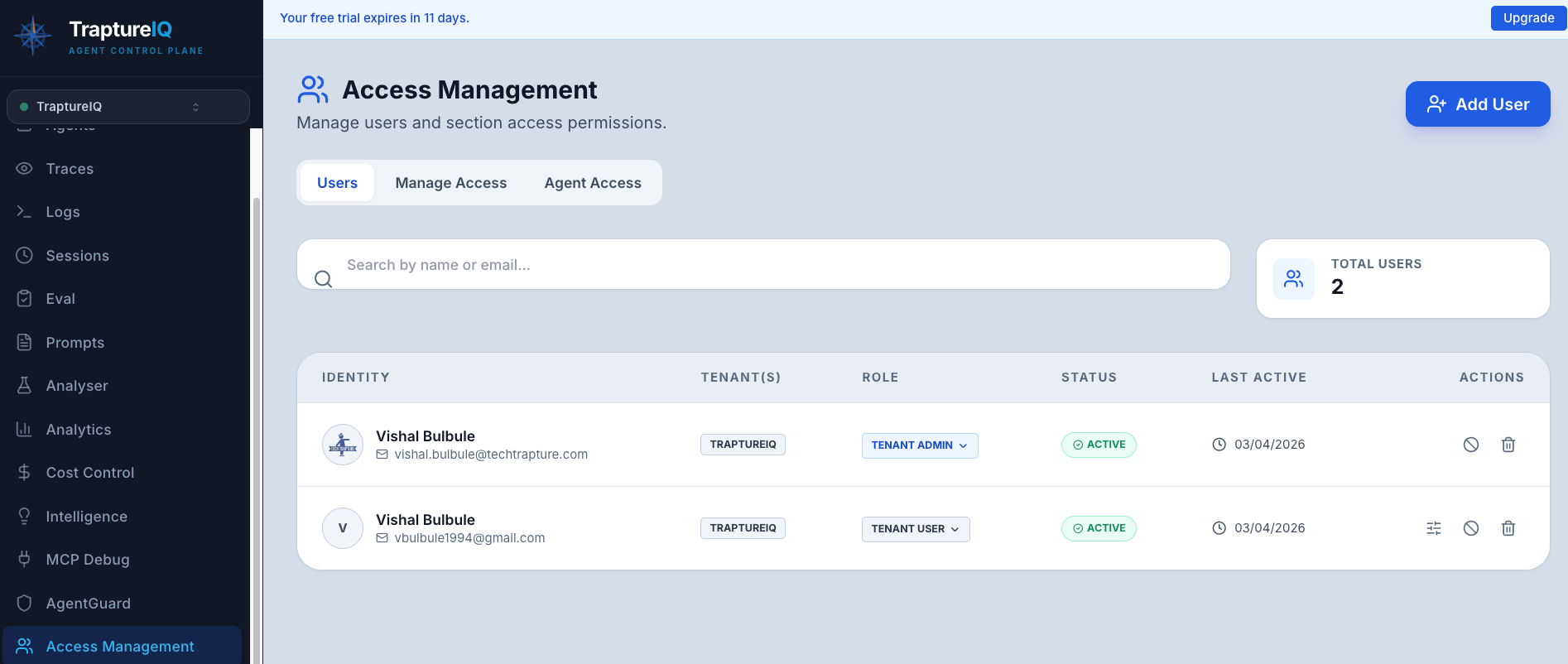
Use the search bar to filter users by name or email — useful when you have many team members.
Available Actions
Change Role
- Click the role badge next to a user's name.
- Select the new role from the dropdown.
- The change takes effect immediately.
| Change | Effect |
|---|---|
| User → Admin | The user gains full access to all sections, including admin-only sections (Analytics, Cost Control, AgentGuard, Access Management) |
| Admin → User | The user loses access to admin-only sections. Their access is now limited to sections you've configured for them |
Configure Section Access
- Click the slider icon on the user's row.
- A modal opens showing toggles for each configurable section (Agents, Traces, Logs, Eval, Session, Prompts, MCP Debug).
- Toggle sections ON or OFF.
- Changes save immediately per toggle — no separate save button needed.

See Section-Level Access for details.
Disable Account
- Click the disable toggle on the user's row.
- The user's account is immediately suspended.
What happens when disabled:
- The user cannot log in to the platform
- Their data (chat sessions, logs) is preserved
- They can be re-enabled at any time by toggling the switch back
When to use: Employee offboarding, temporary suspension, security concerns.
Delete User
- Click the trash icon on the user's row.
- Confirm the deletion in the dialog.
Warning: This permanently removes the user's account. This action cannot be undone. Their historical data (chat sessions, logs) may still appear in audit trails.
Resend Invite
Available only for users with Pending status who haven't accepted their invitation yet. Sends a fresh invitation email with a new registration link.
Understanding User Statuses
| Status | Badge Color | What It Means | What You Can Do |
|---|---|---|---|
| Active | Green | User has accepted the invite and can log in normally | Change role, configure access, disable, delete |
| Pending | Yellow | Invite sent but not yet accepted | Resend invite, delete (cancel invite) |
| Disabled | Red/Grey | Account suspended by an admin | Re-enable, delete |
Agent Access Management
In addition to section-level access, you can control which agents each user can see and chat with:
- Go to Access Management → Agent Access tab.
- You'll see a matrix of all users and all agents.
- Toggle access ON/OFF for each user-agent combination.
Only users with access toggled ON will see that agent in their Agents list. See Agent Access Control for details.
Common Scenarios
| Scenario | Action |
|---|---|
| "A new team lead needs admin access" | Change their role from Tenant User to Tenant Admin |
| "An employee is leaving the company" | Disable their account (preserves data) or delete (permanent) |
| "Someone needs access to Traces for debugging" | Configure section access → toggle Traces ON |
| "A contractor should only see one agent" | Set Agent Access → toggle OFF for all agents except the one they need |
| "An invite wasn't received" | Use the Resend action on the pending user |
Tips for Beginners
- Disable before delete — When someone leaves, disable first. You can always delete later if needed, but you can't un-delete.
- Check section access after role changes — When changing someone from Admin to User, their access immediately drops to only configured sections. Make sure to configure their sections.
- Use search — With many users, the search bar is the fastest way to find someone.