Subscription & Feature Gating — Plans and Access
Some platform modules require an active subscription. This page explains the subscription lifecycle, what happens when it expires, and how to manage your plan.
Subscription Lifecycle
When you create a new workspace, you start with a free trial. Here's how the subscription progresses:
| Status | What It Means | Platform Access |
|---|---|---|
| Trialing | New workspaces start with a 14-day free trial that unlocks all modules | Full access to everything while the trial is active |
| Active | You've activated a paid subscription via Settings → Billing | Full access to all modules |
| Complimentary | Your workspace has been marked as complimentary by the platform admin | Full access — bypasses all subscription checks |
| Expired | Your trial ended or your paid subscription lapsed | Restricted access (see below) |
The Trial Period
When you first create your workspace:
- You get a 14-day free trial with full access to all platform modules.
- A trial banner appears at the top of every page showing your remaining days.
- No credit card is required to start the trial.
- All features work exactly as they do on a paid plan.

What to do during your trial:
- Register agents and start chatting
- Explore Traces, Logs, and Sessions to see observability features
- Run evaluations to test agent quality and security
- Set up AgentGuard for security monitoring
- Invite team members to test collaboration features
- When ready, go to Settings → Billing to activate a paid plan
What Happens When a Subscription Expires
When your trial ends or a paid subscription lapses:
What still works (always accessible):
| Page | Why |
|---|---|
| Settings | So you can manage billing and reactivate your subscription |
| Support | So you can contact the team for help |
| Pricing | So you can view available plans and compare options |
| Upgrade | So you can activate or renew your subscription |
What gets blocked: All other platform modules are blocked. When a user tries to access a gated module (Agents, Chat, Traces, Logs, Eval, Analytics, etc.), they see an upgrade prompt explaining that a subscription is required.
Data is preserved — your agents, conversations, logs, and configuration are not deleted. Everything will be available again once you reactivate your subscription.
Managing Your Subscription
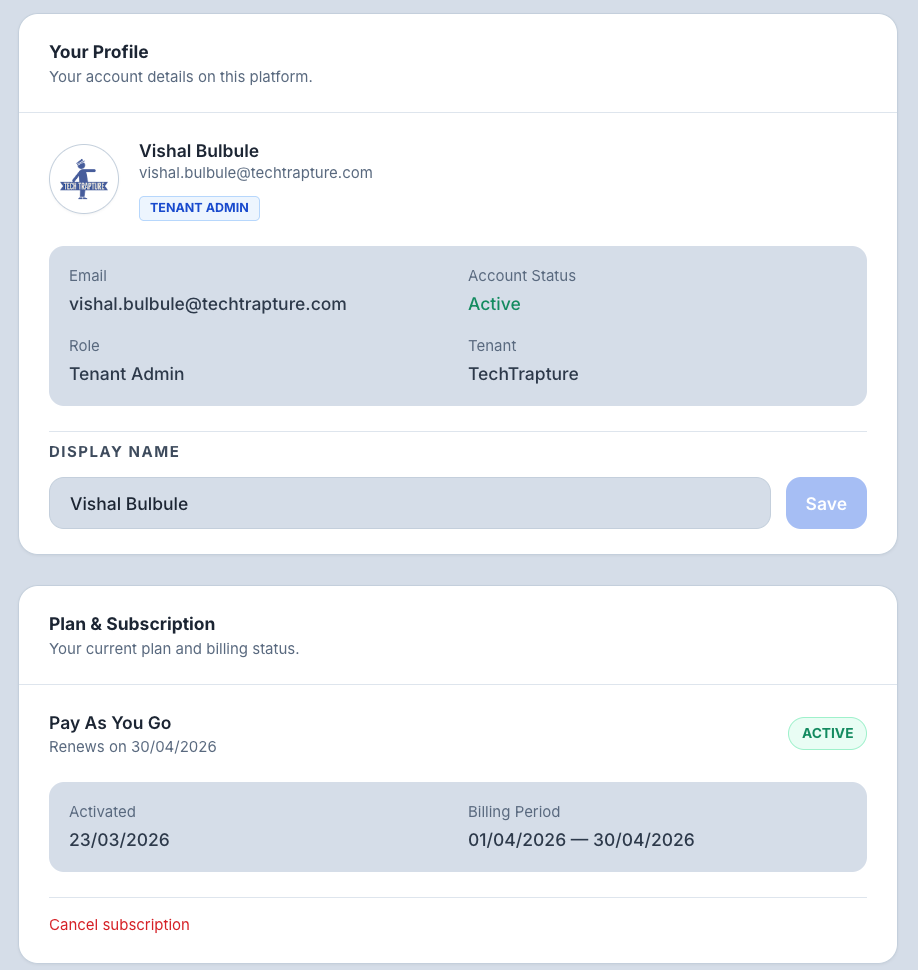
Viewing Your Current Plan
- Go to Settings in the sidebar (at the bottom).
- Navigate to the Billing section.
- You'll see:
- Current plan name and status
- Billing period and renewal date
- Payment history with expandable invoice details
Activating or Upgrading
- Go to Settings → Billing.
- Click Upgrade or Renew.
- Follow the payment flow (powered by Razorpay).
- Once payment is confirmed, your subscription activates immediately and all modules become accessible.
Canceling
- Go to Settings → Billing.
- Click Cancel Subscription.
- Your access continues until the end of the current billing period, then it transitions to expired status.
Checking Your Subscription Status
Your subscription status is visible in multiple places:
| Location | What You'll See |
|---|---|
| Trial Banner | A banner at the top of every page showing days remaining (during trial) or renewal warnings |
| Settings → Billing | Full subscription details including status, dates, and payment history |
| Sidebar | The Pricing/Upgrade link appears when on trial or expired |
Pricing Overview
TraptureIQ offers role-based pricing:
| Plan | Cost | What's Included |
|---|---|---|
| Free Trial | $0 for 14 days | Full access to all features |
| Pay As You Go (PAYG) | Per-role pricing | Full access to all features. Tenant User: $20/month, Tenant Admin: $35/month |
| Enterprise | Custom pricing | Custom terms, SLA, dedicated support |
| AgentGuard Add-On | $50/tenant/month | Optional security add-on for AgentGuard firewall features |
For detailed pricing, visit the Pricing page from the sidebar.
How Billing Works
TraptureIQ uses per-seat, role-based pricing billed monthly. You pay only for the users you have and only for the days they were active.
Seat Prices
| Role | Monthly Price |
|---|---|
| Tenant Admin | $35 / seat / month |
| Tenant User | $20 / seat / month |
| AgentGuard Add-on | $50 / tenant / month |
Billing Cycle
Billing follows calendar months — from the 1st to the last day of each month.
First activation — when you first subscribe, you are charged only for the remaining days of the current month (prorated from your activation date to month-end). Your next full billing cycle starts on the 1st of the following month.
Renewals — at the start of each new billing period, your charge is calculated based on actual seat-day usage from the previous month (see below).
How Proration Works
Every user addition, removal, and role change is tracked day by day. At renewal, each user is billed only for the days they were active and at the role they held during that time.
Formula:
Charge = (Days Active in Period ÷ Total Days in Period) × Role Monthly Price
Example: New user added mid-month
March has 31 days. A Tenant User is added on March 20.
- Days active: 12 (March 20–31 inclusive)
- Charge: (12 ÷ 31) × $20 = $7.74
Example: User removed mid-month
A Tenant Admin is active from March 1 but removed on March 15.
- Days active: 15
- Charge: (15 ÷ 31) × $35 = $16.94
Example: Role change mid-month
A user starts March as a Tenant User, then is promoted to Tenant Admin on March 16.
- Days as User: 15 → (15 ÷ 31) × $20 = $9.68
- Days as Admin: 16 → (16 ÷ 31) × $35 = $18.06
- Total charge: $27.74
Adding a New User
When you invite and activate a new user mid-month:
- They are billed for the remaining days of the current billing month at their assigned role's rate.
- This prorated amount is included in your next renewal payment — not charged immediately.
Removing a User
When you delete or disable a user:
- They are billed only for the days they were active in the current billing period.
- The unused portion is not charged at renewal.
Changing a User's Role
When you change a user's role (e.g., Tenant User → Tenant Admin):
- The system closes their billing segment at the old role.
- A new segment starts at the new role's rate from the day of the change.
- At renewal, both segments are combined into a single prorated charge.
Grace Period
When a billing period ends, your subscription enters Pending Renewal status. You have a 5-day grace period during which full platform access continues. If payment is not made within this window, the subscription moves to Expired.
Currency
Billing is processed in INR by default, converted from USD pricing using a live exchange rate (updated every 12 hours). USD billing is also available. The exchange rate applied to your order is shown in your payment summary and stored with each invoice.
Viewing Your Current Bill Estimate
Go to Settings → Plan & Subscription and click Upgrade / Renew to see a full quote breakdown before paying. The quote shows:
- Each role, seat count, days, and per-seat amount
- AgentGuard add-on (if enabled)
- Exchange rate applied (for INR billing)
- Total due and billing period
Tips for Beginners
- Start with the free trial — No commitment needed. Explore everything the platform offers during your 14 days.
- Don't wait until the last day — Activate your subscription a few days before the trial ends to avoid any disruption.
- Your data is safe — Even if your subscription expires, nothing is deleted. Reactivating restores everything.
- Need more time? — Contact support if you need a trial extension to properly evaluate the platform.