Chat — The ADK UI for Your Google AI Agents
Access: All users (for agents they have been assigned to)
The Chat module is TraptureIQ's ADK UI — the unified, zero-code chat interface for every Google ADK agent your team has registered. Instead of building a custom React/Flutter front-end for each agent, your team gets one polished, enterprise-grade Google ADK chat UI that works the same way for every agent on Agent Engine, Cloud Run, or any custom HTTPS endpoint.
What is the Chat Module?
Think of it as a chat app (like Slack or WhatsApp) purpose-built for AI agents. Instead of chatting with people, you're chatting with your registered AI agents. Every conversation is:
- Streamed in real-time — responses appear word by word as the agent generates them
- Automatically saved — you can return to any conversation at any time
- Secured — AgentGuard monitors every message for safety (if enabled)
- Tracked — token usage, latency, and costs are recorded per message
How to Start a Conversation
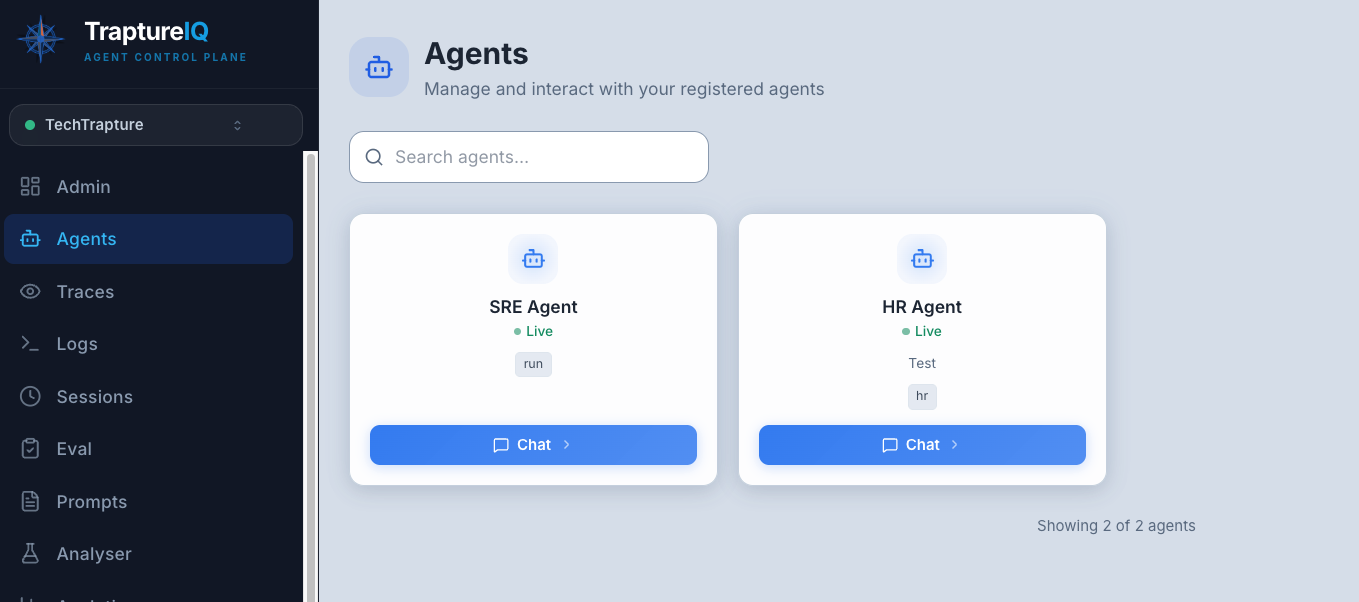
Step 1: Find Your Agent
- Click Agents in the sidebar.
- You'll see all agents you have access to displayed as cards (grid view) or rows (list view).
- Each agent card shows:
- Name and description
- Framework badge (Google ADK) with color coding
- Deployment type (Cloud Run, Agent Engine, Custom)
- Status indicator — a pulsing green dot means "Live", grey means "Offline"
- Tags for categorization (e.g.,
production,support)
Step 2: Open the Chat
- Click the Chat with Agent button on the agent card.
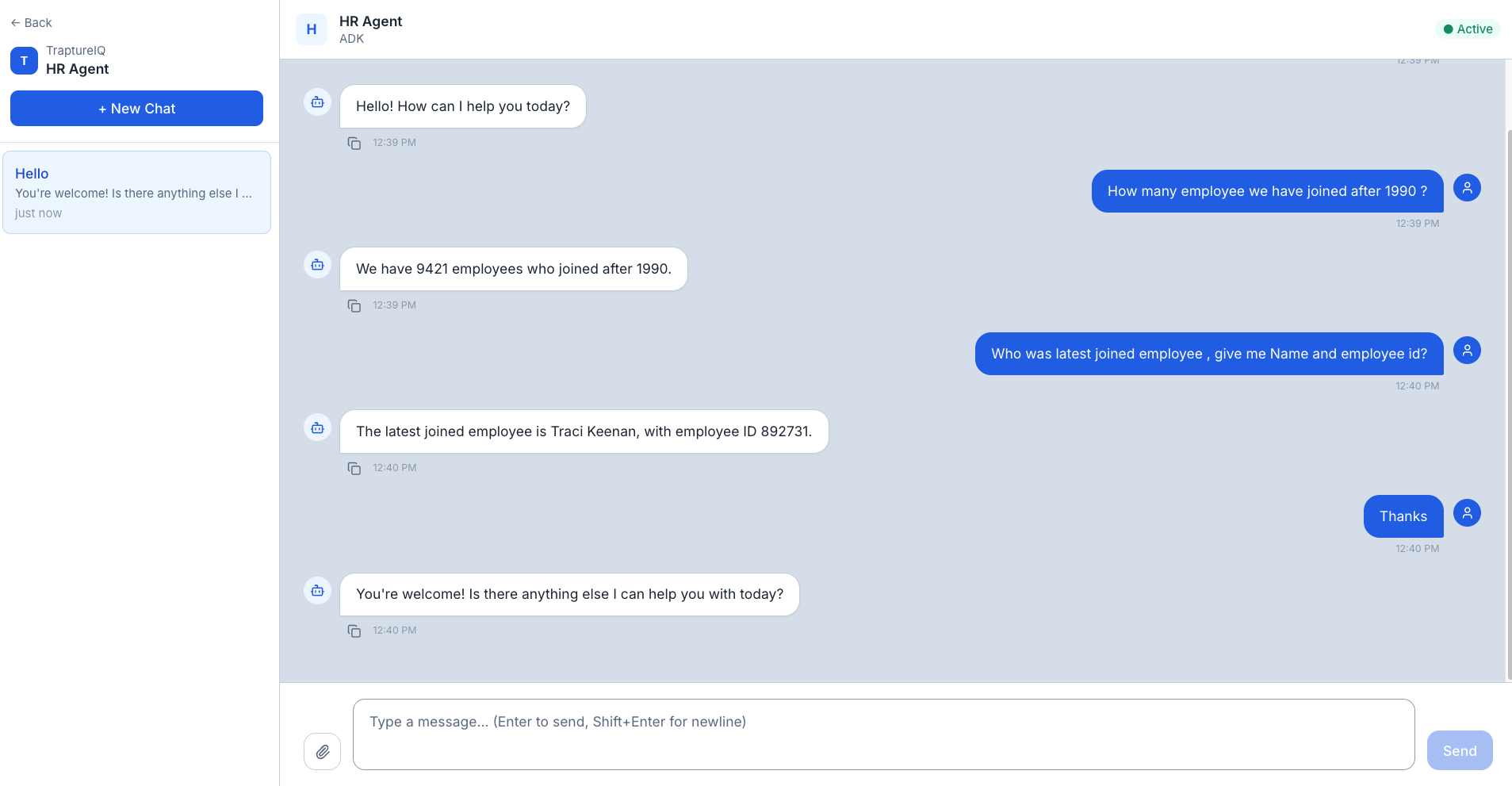
- You'll be taken to the full-screen chat interface.
Step 3: Send a Message
- Type your message in the text input at the bottom.
- Press Enter or click the send button.
- The agent's response will stream in real-time — you'll see it appear word by word.
Expected result: The agent responds with formatted text. Responses can include:
- Plain text paragraphs
- Markdown formatting — tables, code blocks (with copy buttons), bold, italic, lists
- Citations — if the agent references external sources
Managing Chat Sessions
What is a Session?
A session is a single conversation thread with an agent. Each session maintains its own conversation history, so the agent remembers what you discussed within that session.
Creating a New Session
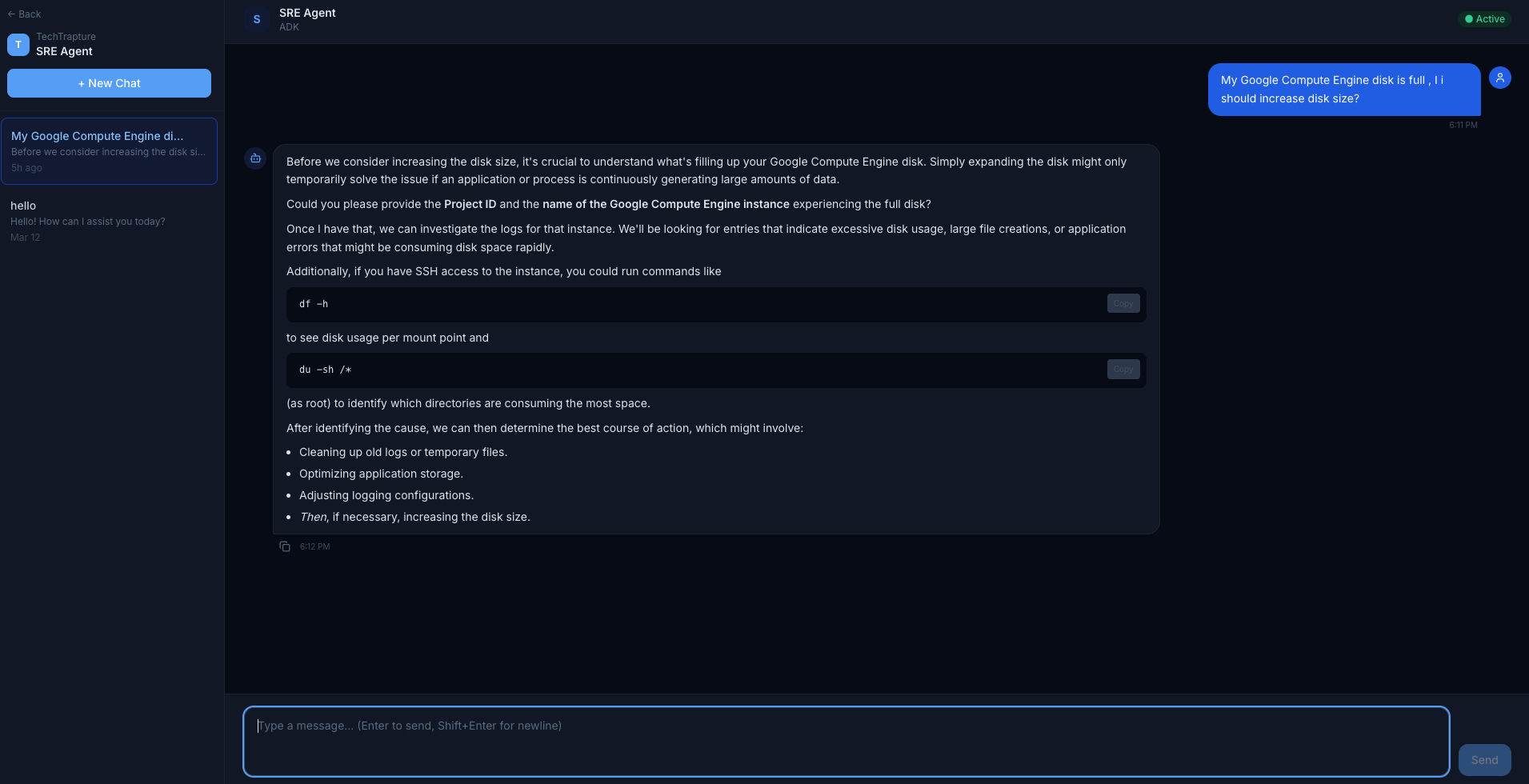
- Click + New Chat in the chat sidebar to start a fresh conversation.
- Each new session is isolated — the agent starts with no memory of previous sessions.
Switching Between Sessions
- The left panel of the chat interface shows all your sessions for the current agent.
- Each session displays:
- Session name (auto-generated from your first message)
- Last message timestamp (shown as relative time, e.g., "2 hours ago")
- Active session highlighting — the current session is visually highlighted
- Click any session to switch to it and see the full conversation history.
Deleting Sessions
- Hover over a session in the sidebar and click the trash icon to delete it.
- Deleted sessions cannot be recovered.
What You'll See in Each Message
Every agent response in TraptureIQ includes metadata for transparency:
| Label | What It Shows | Why It Matters |
|---|---|---|
| AgentGuard Status | "Safe" or "Sanitized" — indicates whether the firewall processed the message | Know instantly if content was modified for safety. If a response is blocked, you'll see a warning message instead. |
| Token Count | The exact number of tokens consumed by the message (input + output) | Track per-message cost and understand how verbose your agent is |
| Latency | How many seconds the agent took to respond | Monitor response times and identify slow agents |
Features at a Glance
| Feature | Description |
|---|---|
| Real-time Streaming | Responses appear word by word as the model generates them — no waiting for the full response |
| Markdown Rendering | Full GitHub-flavored markdown support — tables, code blocks, headings, lists, bold, italic |
| Code Blocks with Copy | Code snippets have a one-click copy button for easy use |
| Session Persistence | Every conversation is saved. Close the browser and come back — your history is preserved |
| File Attachments | Attach files to your messages when supported by the agent |
| Multi-Session Support | Chat sidebar lets you manage multiple conversation threads per agent |
| Auto-Naming | Sessions are automatically named based on your first message |
| Error Handling | If an agent fails to respond, you'll see a clear error message instead of a blank response |
Tips for Beginners
- Start simple — Send a short greeting to test that the agent is working before asking complex questions.
- One agent at a time — The chat interface is scoped to one agent per conversation. To chat with a different agent, go back to the Agents page and select it.
- Check the status — If an agent's card shows "Offline", it means the underlying service is down. Contact your admin or check the deployment.
- Use sessions wisely — For different topics, start a new session. Mixing topics in one session can confuse the agent's context.