Analyser — Token Counter & Cost Estimation Tool
Access: All users (always available, no admin configuration needed)
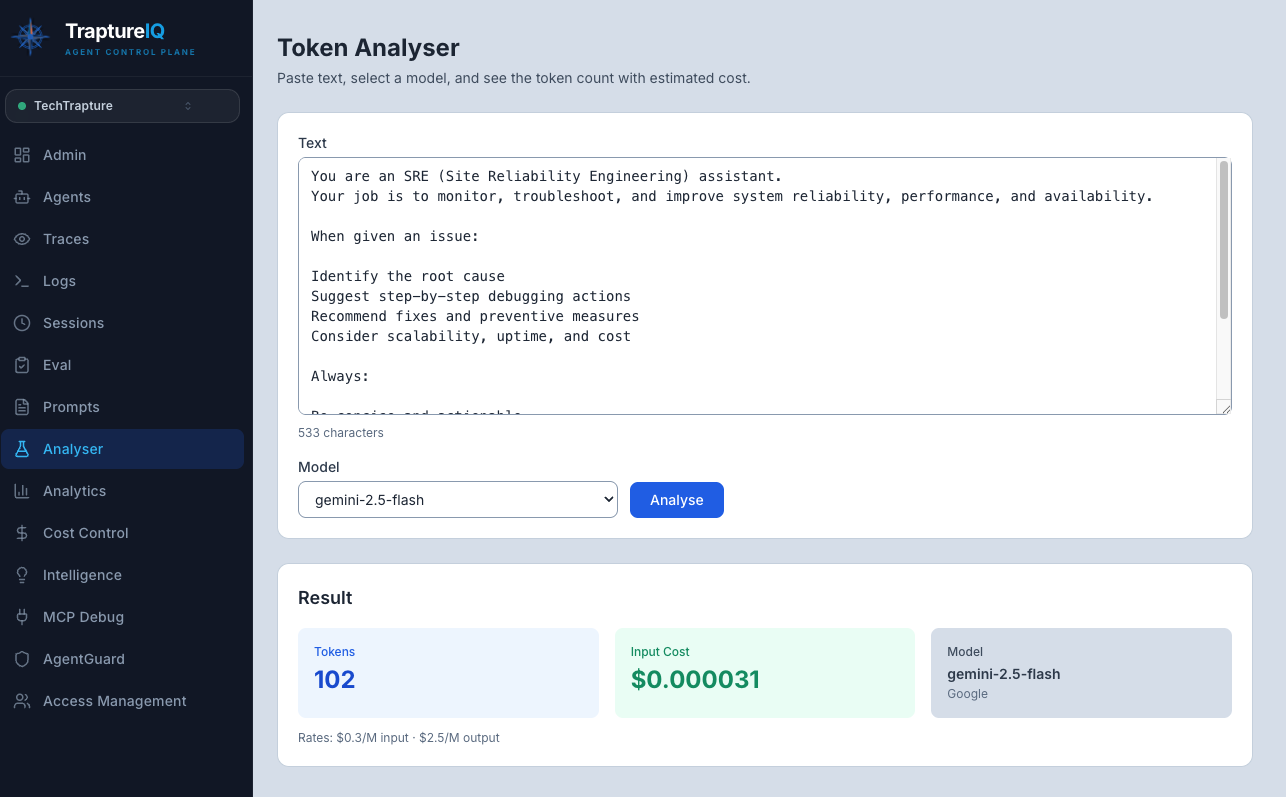
The Analyser is a utility tool for counting tokens and estimating costs across multiple LLM models. Use it to understand how much of a model's context window your text will consume and what it will cost — before you send it to an agent.
What is the Analyser?
When you work with AI agents, every piece of text (prompts, responses, system instructions) is broken down into tokens — small chunks of text that the model processes. The number of tokens directly affects:
- Cost — You're charged per token by the LLM provider
- Context window usage — Every model has a maximum number of tokens it can process at once
- Performance — Longer prompts mean slower responses
The Analyser lets you paste any text and instantly see:
- How many tokens it contains
- How much it would cost across different models
- How much of each model's context window it uses
Why it matters: Before deploying a prompt to production or sending a long document to an agent, you want to know:
- Will it fit in the model's context window?
- How much will each request cost?
- Which model gives the best cost/performance ratio?
How to Use the Analyser
Step 1: Open the Analyser
Click Analyser in the sidebar. It's always visible to all users — no admin configuration needed.
Step 2: Enter Your Text
Paste or type your text in the input area. This can be:
- A system prompt you're writing
- A sample user message
- A document you plan to send to an agent
- Any text you want to analyze
Step 3: View the Results
The tool displays results in real-time as you type — no need to click a button.
What you'll see:
| Metric | Description |
|---|---|
| Character Count | Total number of characters in your text |
| Token Counts | Number of tokens for each supported model, displayed simultaneously |
| Estimated Cost | Cost per model based on current pricing for input tokens |
The results are shown for multiple Google models simultaneously (Gemini Pro, Gemini Flash, etc.), organized by vendor. This lets you compare at a glance.
Understanding the Results
Token Count
- Different models tokenize text differently — the same text may result in slightly different token counts across models.
- A rough rule of thumb: 1 token ≈ 4 characters in English (but this varies by language and model).
Cost Estimation
- The cost shown is for input tokens only (since you're analyzing text before sending it).
- Actual cost per request also includes output tokens (the agent's response), which vary based on the response length.
- The pricing is based on the current published rates for each model.
Context Window Usage
- If your text is close to a model's context window limit, you'll have very little room left for the conversation.
- Recommendation: Your system prompt should ideally use no more than 10–20% of the model's context window, leaving plenty of room for user messages and agent responses.
Common Use Cases
| Use Case | What to Do |
|---|---|
| Prompt Engineering | Write your system prompt in the Prompts module, then paste it here to check token usage across models. Ensure it fits within the context window with room to spare. |
| Cost Planning | Before deploying an agent, paste a representative prompt to estimate per-request costs. Multiply by expected daily volume for a cost projection. |
| Model Comparison | Paste the same text and compare token counts and costs across models. Choose the most cost-effective model for your use case. |
| Document Length Check | Before sending a large document to an agent, paste it here to verify it fits within the model's context window. |
Tips for Beginners
- Use it before the Prompts module — Draft your prompt, check the token count here, then refine if it's too long.
- Check costs before going to production — A prompt that costs $0.001 per request may seem cheap, but at 10,000 requests/day, that's $10/day just for the system prompt.
- Shorter is usually better — If two prompts produce similar agent quality but one uses fewer tokens, go with the shorter one. It's cheaper and leaves more room for context.
- Pair with Prompts and Cost Control — Use the Analyser for pre-deployment estimation, the Prompts module for management, and Cost Control for monitoring actual production costs.
Tip: The Analyser currently supports Google models for token counting. For cross-provider cost comparison, use the token count as a rough estimate for other providers (counts are typically within 10% across major LLMs for English text).