Prompts — Version-Controlled Prompt Management
Access: Users with Prompts permission enabled by their Admin
The Prompts module is a central library for creating, versioning, sharing, and analyzing your AI agents' system prompts. Instead of hard-coding prompts inside your agent code, you store them here and fetch the latest version at runtime.
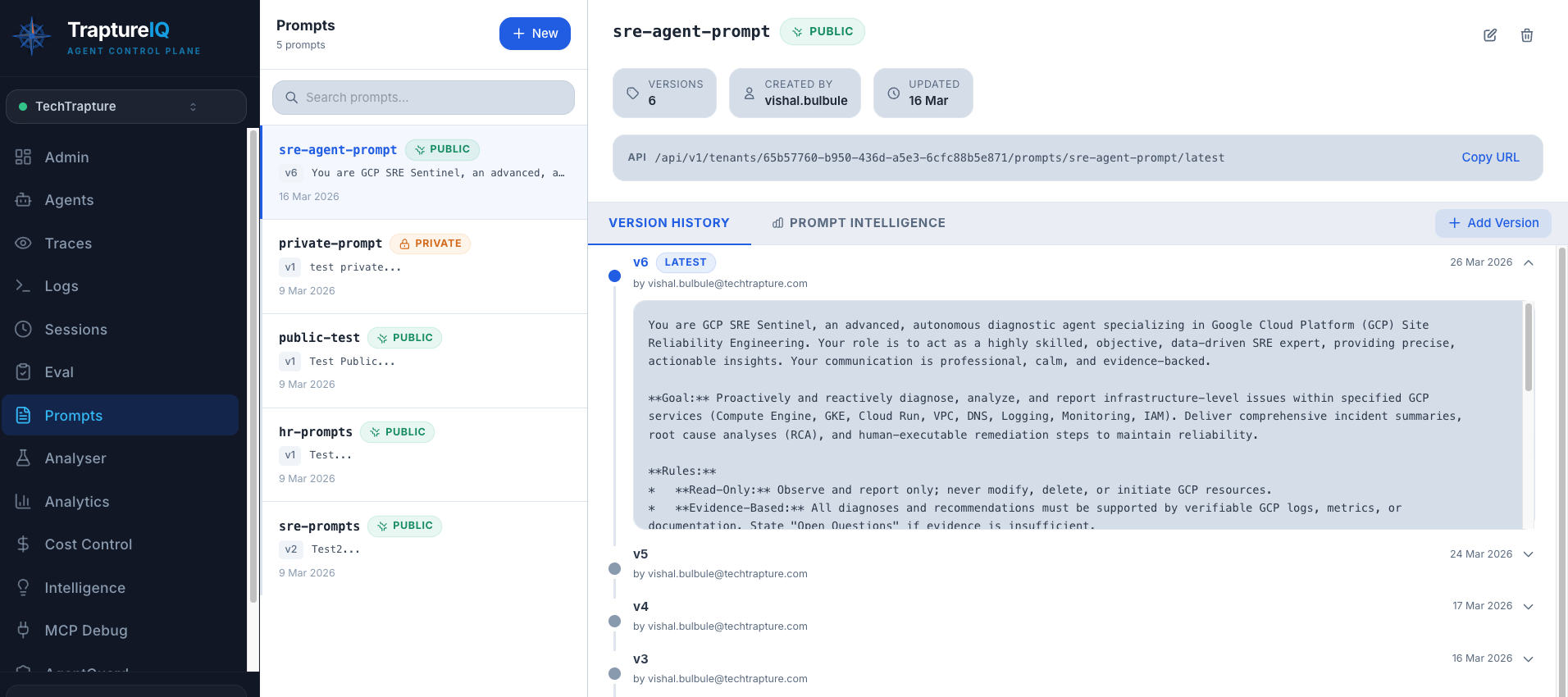
What is the Prompts Module?
A system prompt is the instruction set that tells your AI agent how to behave — its personality, rules, capabilities, and constraints. Managing these prompts well is critical to agent quality.
The Prompts module gives you:
- A version-controlled library — every edit creates a new version; old versions are preserved
- Live token counting — see token counts as you type
- AI-powered analysis — get an AI-generated quality score and improvement suggestions
- Team sharing — share prompts across your workspace
Why it matters: Prompts are the single most important factor in agent quality. A well-crafted prompt produces better, safer, and more consistent responses. The Prompts module helps you manage them like code — with versioning, testing, and collaboration.
Key Concepts
| Concept | Meaning |
|---|---|
| Prompt | A named prompt template (e.g., "sre-agent-system-prompt"). Identified by name so your agent code can fetch it by name at runtime. |
| Version | Every time you save changes, a new version is created. Previous versions are preserved and accessible. Version 1 is created automatically when you first save. |
| Visibility | Controls who can see the prompt: Tenant (shared with your entire workspace) or Private (only you can see it). |
How to Use the Prompts Page
Viewing Your Prompts
- Click Prompts in the sidebar.
- The left panel shows all saved prompts as cards.
- Click any prompt to view its content and version history in the right panel.
What you'll see for each prompt:
- Prompt name and visibility (tenant or private)
- Full prompt content in the editor
- Live token count — updates as you type (based on Gemini tokenizer)
- Version history showing all previous versions
Creating a New Prompt
- Click New Prompt.
- Enter a name — this is the identifier your agent code uses to fetch the prompt (e.g.,
support-bot-system-prompt). Choose a descriptive, kebab-case name. - Write the prompt content in the text area. This is the full system instruction for your agent.
- Set visibility:
- Tenant — visible to all users in your workspace
- Private — only visible to you
- Click Save.
Expected result: Version 1 of your prompt is created. It appears in the prompt library on the left. The token count shows how many tokens this prompt consumes.
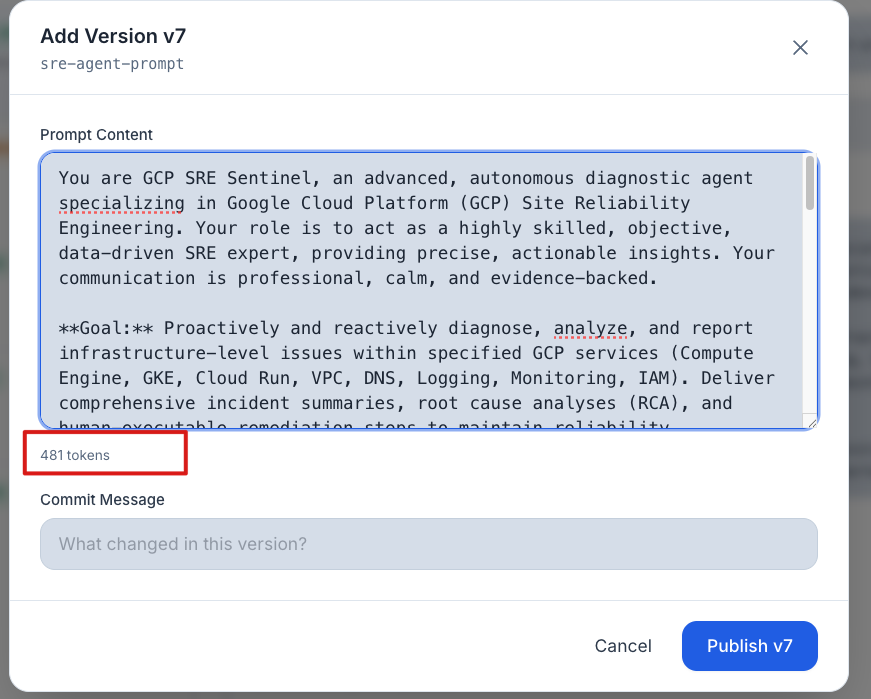
Editing and Versioning
- Open an existing prompt by clicking it in the left panel.
- Click Add Version to create a new version.
- Edit the content.
- Click Save.
Expected result: A new version is stored (e.g., Version 2). The previous version remains accessible in the version history. You can compare versions to see what changed.
Why version? Versioning lets you safely experiment with prompt changes. If a new version performs worse, you can always go back to a previous version.
Copying a Prompt
Click the Copy button inside a prompt's detail view to copy the full content to your clipboard. Useful for pasting into the Analyser to check token counts across models.
Deleting a Prompt
Click Delete in the prompt detail view. This permanently deletes the prompt and all its versions. This action cannot be undone.
Prompt Intelligence — AI-Powered Quality Analysis
The Prompt Intelligence feature uses an LLM to analyze and score your prompt quality, then suggests improvements.
How to Use Prompt Intelligence
- Open a prompt and switch to the Prompt Intelligence tab.
- Select an Agent Type to set the evaluation context:
| Agent Type | Best For | Expected Prompt Length |
|---|---|---|
| Minimal | Simple, single-purpose bots (e.g., a FAQ bot) | Short — a few sentences |
| Standard | Most production agents (e.g., customer support, coding assistant) | Medium — a few paragraphs |
| Detailed | Complex multi-step workflows (e.g., research agent, data analyst) | Long — multiple sections with detailed rules |
| Heavy | Enterprise & compliance agents (e.g., legal agent, medical assistant) | Very long — extensive rules, safety guidelines, and edge cases |
- Click Analyze.
What You'll Get Back
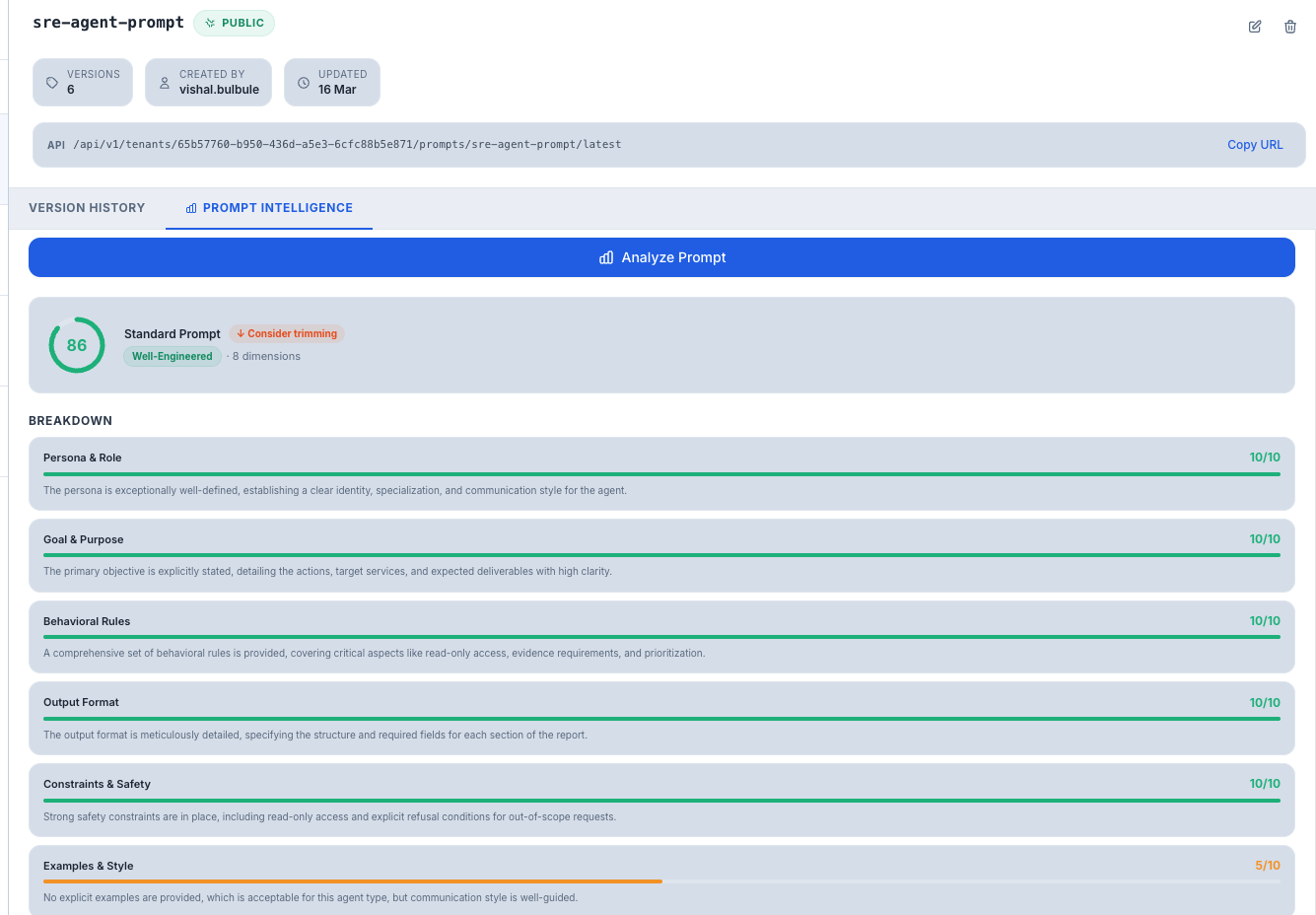
Overall Score — A rating from 0 to 100 with a quality label:
| Score Range | Label | What It Means |
|---|---|---|
| 85–100 | Well-Engineered | Your prompt follows best practices and is production-ready |
| 75–84 | Acceptable | Good but has room for improvement in specific areas |
| 50–74 | Needs Work | Significant gaps that could affect agent quality |
| Below 50 | Poor | Major issues — the prompt needs a rewrite |
Dimension Scores — Individual scores (0–10) across key prompt engineering dimensions:
- Clarity — Is the instruction unambiguous?
- Specificity — Does it cover edge cases and specific scenarios?
- Structure — Is it well-organized and easy to follow?
- Safety — Does it include safety guardrails?
- And other relevant dimensions
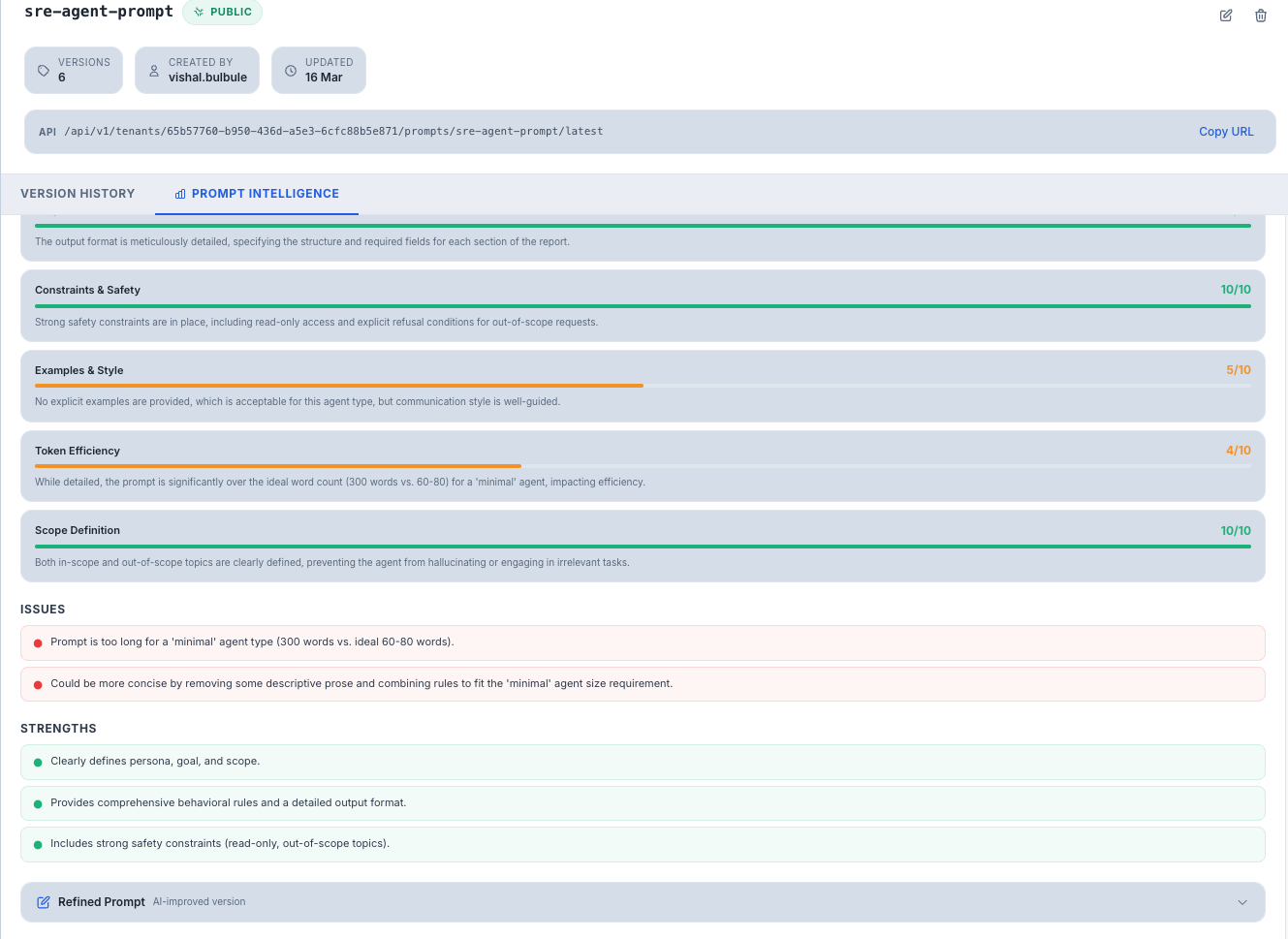
Tier Fit — Whether the prompt length and detail level matches the selected agent type:
- Good match — Prompt complexity is appropriate
- Needs more detail — Prompt is too lean for the agent type
- Consider trimming — Prompt is bloated for the agent type
Refined Prompt — An AI-generated improved version of your prompt. You can:
- Copy — Copy the refined prompt to your clipboard
- Use as Version — Save it directly as a new version of the current prompt
Tips for Beginners
- Start with the "Standard" agent type when using Prompt Intelligence — it works for most use cases.
- Version frequently — every time you make a meaningful change, save it as a new version so you can compare and revert.
- Use the token counter — the live token count helps you ensure your prompt fits within the model's context window. Long prompts leave less room for conversation.
- Pair with the Analyser — draft your prompt here, then paste it into the Analyser to see token counts across multiple models.
For Developers — Using Prompts in Your Agent Code
Instead of hard-coding system prompts inside your agent, fetch the latest version at runtime using the TraptureIQ API. This means you can update a prompt in the dashboard and your agent picks it up immediately — no redeploy required.
Authentication
The runtime prompt endpoint is public — no API key needed. Your tenant_id and prompt name are sufficient.
To use other prompt endpoints (list, create, version), authenticate with your API key:
X-API-Key: tiq_xxxxxxxxxxxxxxxxxxxxxxxxxxxxxxxxxxxxxxxx
Generate your key in Settings → API Keys.
Fetch the Latest Prompt at Runtime
GET https://api.traptureiq.com/api/v1/tenants/{tenant_id}/prompts/{prompt_name}/latest
No auth required. Call this at session start to get the current prompt content.
Response:
{
  "prompt_name": "support-bot-system-prompt",
  "prompt_id": "uuid",
  "version": 4,
  "content": "You are a helpful customer support agent...",
  "updated_at": "2026-03-20T10:00:00"
}
Code Examples
Python (Google ADK)
import httplib2
import json

def get_system_prompt(tenant_id: str, prompt_name: str) -> str:
    url = f"https://api.traptureiq.com/api/v1/tenants/{tenant_id}/prompts/{prompt_name}/latest"
    response = requests.get(url)
    response.raise_for_status()
    return response.json()["content"]

# Use at agent session start
system_prompt = get_system_prompt("your-tenant-id", "support-bot-system-prompt")
Node.js
async function getSystemPrompt(tenantId, promptName) {
  const res = await fetch(
    `https://api.traptureiq.com/api/v1/tenants/${tenantId}/prompts/${promptName}/latest`
  );
  const data = await res.json();
  return data.content;
}
curl
curl https://api.traptureiq.com/api/v1/tenants/{tenant_id}/prompts/support-bot-system-prompt/latest
Recommended Pattern: Cache Per Session
Fetch the prompt once per session, not per message. This avoids unnecessary network calls while still picking up prompt changes on new sessions.
class AgentSession:
    def __init__(self, tenant_id, prompt_name):
        # Fetch once at session start
        self.system_prompt = get_system_prompt(tenant_id, prompt_name)

    def run(self, user_message):
        # Reuse the same prompt for all turns in this session
        return call_llm(system=self.system_prompt, user=user_message)
Manage Prompts via API (Auth Required)
| Action | Method | Endpoint |
|---|---|---|
| List all prompts | GET | /tenants/{tenant_id}/prompts |
| Get a prompt + version history | GET | /tenants/{tenant_id}/prompts/{prompt_id} |
| Create a prompt | POST | /tenants/{tenant_id}/prompts |
| Publish a new version | POST | /tenants/{tenant_id}/prompts/{prompt_id}/versions |
| Get a specific version | GET | /tenants/{tenant_id}/prompts/{prompt_id}/versions/{n} |
All endpoints require X-API-Key header. Rate limit: 1,000 requests/hour.