Session Dashboard — Reviewing Conversation History
Access: Users with Session permission enabled by their Admin
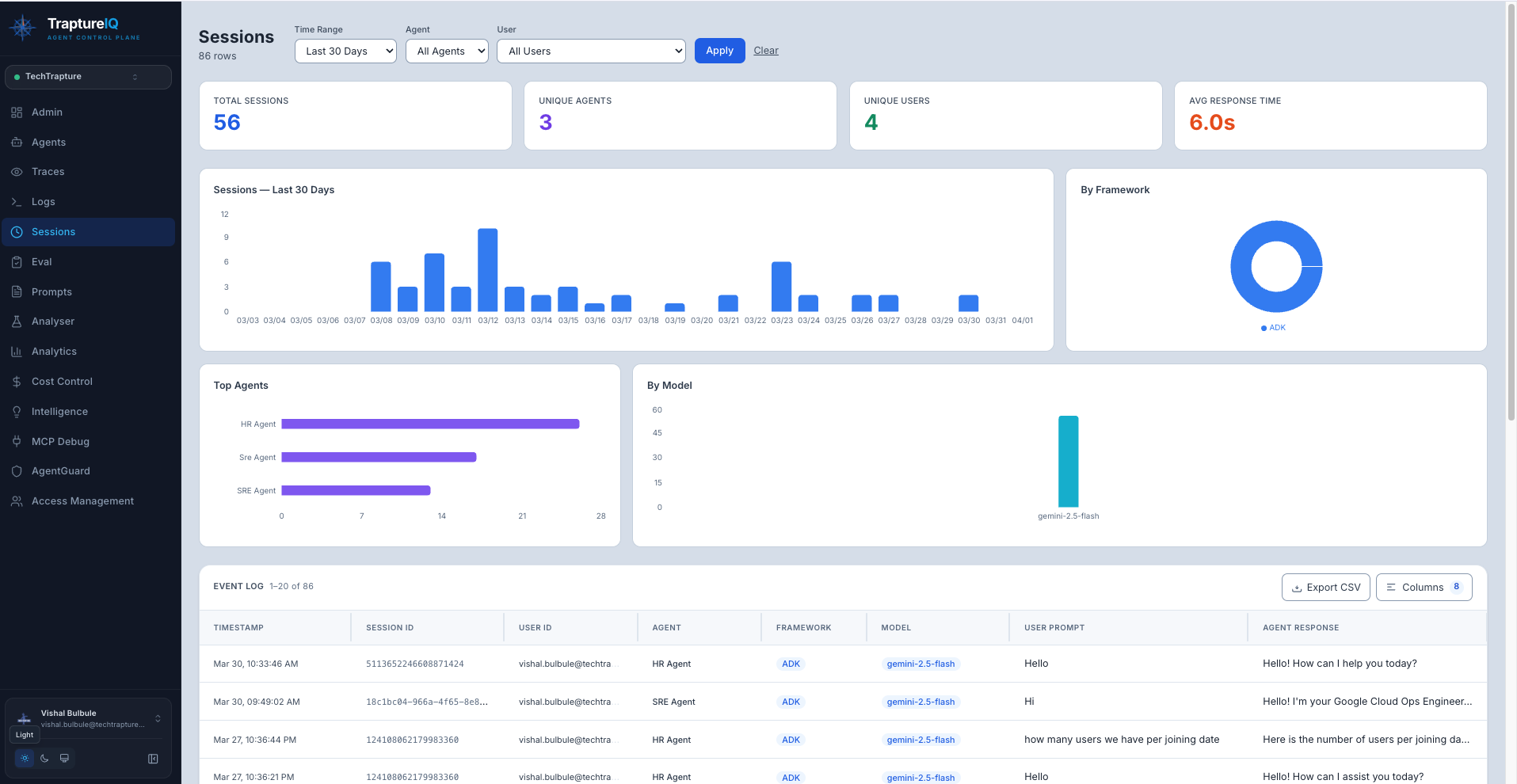
The Session Dashboard provides a bird's-eye view of all chat conversations that have happened across your workspace. While the Chat module is for having conversations, the Session Dashboard is for reviewing, analyzing, and auditing past interactions.
What is the Session Dashboard?
Think of it as a "conversation history manager" for your entire team. It shows:
- Every chat session that has occurred in your workspace
- Who talked to which agent and when
- How many messages were exchanged per session
- Visual charts showing usage trends
Why it matters: Administrators and team leads need to understand how agents are being used — which agents are most popular, who uses them most, and when peak usage occurs. The Session Dashboard answers all of these questions.
How to Use the Session Dashboard
Step 1: Open the Dashboard
- Click Sessions in the sidebar.
- The dashboard loads with a summary view showing statistics and a list of all sessions.
Step 2: Understand the Layout
The page is divided into two areas:
Top Area — Visual Statistics:
- Bar Charts — Session volume over time, showing usage trends (e.g., how many sessions happened each day this week)
- Pie Charts — Distribution of sessions by agent (which agents are used most) or by user
- Summary Metrics — Total sessions, total messages, and number of active users for the selected time range
Bottom Area — Session Table:

A paginated list of all chat sessions. Each row shows:
| Column | What It Shows |
|---|---|
| Session Name | Auto-generated from the first prompt in the conversation |
| Agent Name | Which agent was involved in the conversation |
| User | Who initiated the session |
| Timestamp | When the session was created |
| Message Count | How many messages were exchanged |
Step 3: Filter Sessions
Use the filter controls at the top to narrow down results:
| Filter | What It Does | Example |
|---|---|---|
| Agent | Show sessions for a specific agent only | "Show me only conversations with the Support Bot" |
| User | Show sessions from a specific user only | "Show me all of John's conversations" |
| Time Range | Limit sessions to a time period | Last hour, Last 24h, Last 7 days, Last 30 days, All Time |
Step 4: View Session Details
Click any session row to expand it and see the full conversation history, including:
- All user prompts (what was asked)
- All agent responses (what was answered)
- Timestamps for each message
Understanding the Charts
Bar Chart — Session Volume Over Time
- X-axis: Time periods (hours, days, or weeks depending on the selected range)
- Y-axis: Number of sessions
- What to look for: Spikes in usage (busy periods), declining trends (reduced adoption), or consistent patterns (steady usage)
Pie Chart — Distribution by Agent
- Shows which agents receive the most conversations as a percentage
- What to look for: One agent dominating usage (potential bottleneck), or agents with very low usage (potential candidates for review)
Common Use Cases
| Scenario | What to Do |
|---|---|
| "I want to see what conversations happened today" | Set time range to "Last 24h" and browse the session list |
| "I want to know which agent is most popular" | Check the pie chart for agent distribution |
| "I need to audit a specific user's conversations" | Filter by the user's name and review their sessions |
| "I want to understand weekly usage trends" | Set time range to "Last 7 days" and look at the bar chart |
Pagination
Sessions are loaded in pages to keep the dashboard fast. Use the pagination controls at the bottom to:
- Navigate to the next/previous page
- Jump to a specific page number
- The page size shows how many sessions are displayed per page