MCP Debug — Test Your MCP Integrations
Access: Users with MCP Debug permission enabled by their Admin
The MCP Debug module is a testing and debugging tool for your Model Context Protocol (MCP) integrations. Use it to explore available MCP tools, test tool responses, and validate authentication — all from within TraptureIQ, without switching to a CLI or separate console.
What is MCP?
The Model Context Protocol (MCP) is an open standard that allows AI agents to interact with external tools and data sources. Think of it as a "universal adapter" that lets your agents connect to cloud services like BigQuery, Cloud Run, Firestore, and more.
What is Google Cloud MCP?
Google Cloud MCP servers let your AI agents interact with Google Cloud services. Each service exposes its capabilities as MCP tools that agents can discover and call programmatically.
Why it matters: If you're building agents that need to interact with Google Cloud services (query databases, manage infrastructure, monitor logs), MCP provides a standardized way to do it. The MCP Debug module lets you test these connections before deploying your agent.
Supported Servers
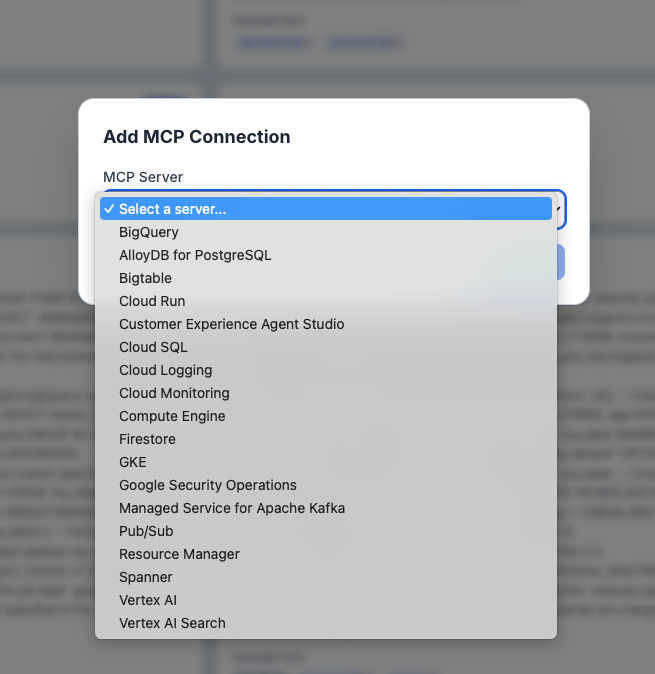
TraptureIQ supports 18 Google Cloud MCP servers:
| Server | What You Can Do |
|---|---|
| BigQuery | Query, explore, and manage BigQuery datasets and tables |
| Cloud Run | Deploy and manage Cloud Run services and jobs |
| Cloud SQL | Manage Cloud SQL instances (MySQL, PostgreSQL, SQL Server) |
| Cloud Logging | Query and manage Cloud Logging log entries and sinks |
| Cloud Monitoring | Query metrics, manage alerting policies, and dashboards |
| Compute Engine | Manage Compute Engine VMs, disks, and networking |
| Firestore | Manage Firestore databases, documents, and indexes |
| GKE | Manage Google Kubernetes Engine clusters and workloads |
| Pub/Sub | Manage Pub/Sub topics, subscriptions, and message publishing |
| Spanner | Manage Spanner instances, databases, and schemas |
| Vertex AI | Manage Vertex AI models, endpoints, and pipelines |
| Vertex AI Search | Manage Vertex AI Search engines and data stores |
| AlloyDB for PostgreSQL | Manage AlloyDB for PostgreSQL instances and databases |
| Bigtable | Manage Bigtable instances, clusters, and tables |
| Resource Manager | Manage GCP projects, folders, and organizations |
| Customer Experience Agent Studio | Build and manage CX Agent Studio conversational agents |
| Google Security Operations | Query and manage Google Security Operations (Chronicle) data |
| Managed Service for Apache Kafka | Manage Apache Kafka clusters and topics |
For a full list of available tools per server, see Supported Google Cloud MCP products.
How to Use MCP Debug
Step 1: Add a Connection
- Click MCP Debug in the sidebar.
- Click + Add Connection.
- Select a server from the dropdown (e.g., BigQuery).
- If the server is regional (AlloyDB, Security Operations, Managed Kafka), enter your region (e.g.,
us-central1). - Choose an authentication method (see Authentication Setup below).
- Click Connect.
Expected result: The connection appears as a tab at the top of the page. You can add multiple connections to different servers — each gets its own tab.
Step 2: Browse Available Tools
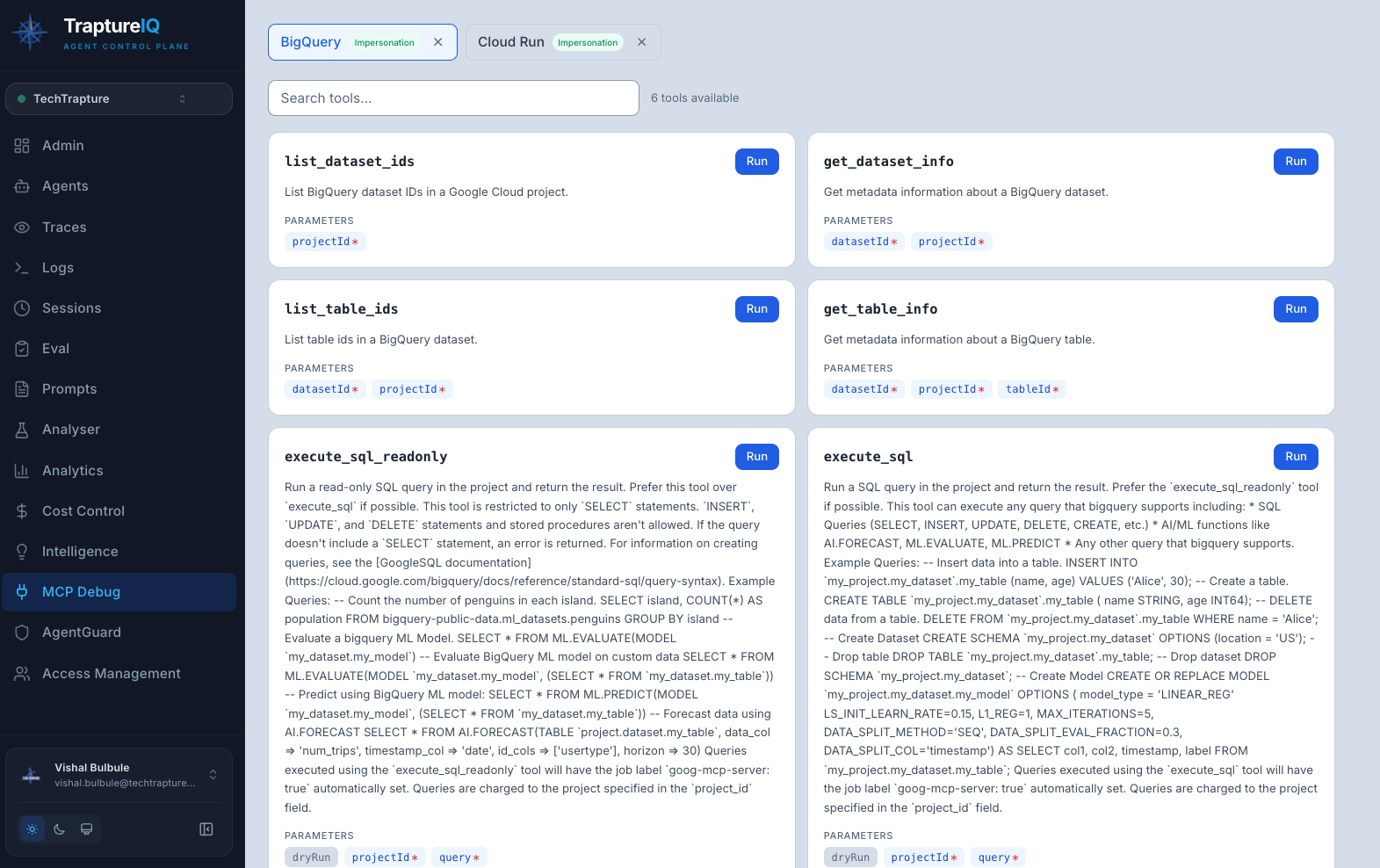
Once connected, TraptureIQ automatically loads all available tools from the MCP server.
What you'll see for each tool:
- Name — the tool identifier (e.g.,
list_dataset_ids,execute_sql) - Description — what the tool does in plain language
- Parameters — required and optional inputs with type information (string, number, boolean, etc.)
Use the search bar to filter tools by name or description.
Step 3: Run a Tool
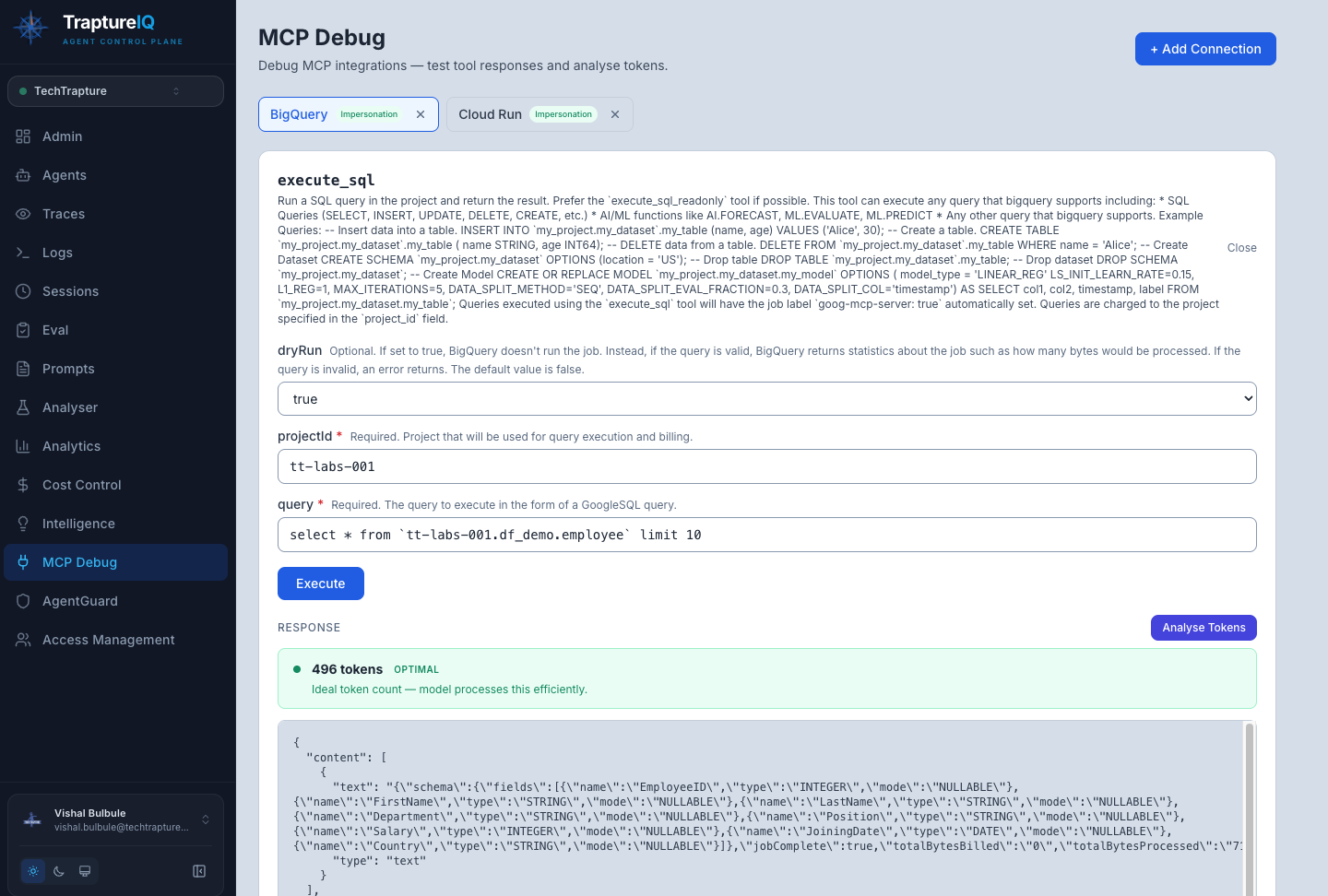
- Click Run on any tool card.
- Fill in the parameter fields. Required fields are marked with a red asterisk (*).
- Click Execute.
- The response appears below — either as formatted JSON (success) or an error message (failure).
Expected result for success: A JSON response showing the tool's output (e.g., a list of BigQuery datasets, Cloud Run service details, etc.).
Expected result for failure: An error message explaining what went wrong (e.g., missing permissions, wrong arguments, API not enabled).
Step 4: Manage Connections
- Switch between connections — click the tabs at the top of the page
- Remove a connection — click the x button on its tab (this only removes the configuration in TraptureIQ; no GCP resources are affected)
- Auth method badge — each tab shows which authentication method is being used (Impersonation, Direct, SA Key)
Authentication Setup
Each MCP connection needs a GCP service account with the right permissions. TraptureIQ offers three authentication methods:
Option 1: Authorize with Impersonation (Recommended)
No credentials are exchanged. TraptureIQ uses short-lived tokens to access your GCP project.
Setup:
- Create a service account in your GCP project.
- Grant it the required roles (see Required Permissions).
- Grant TraptureIQ permission to impersonate this account (follow the instructions shown in the connection form).
- Enter your service account email in the connection form.
Option 2: Authorize TraptureIQ Principal (Simplest)
Grant TraptureIQ's service account direct permissions on your Google Cloud project. No credentials to manage.
Setup:
- Grant the required roles directly to TraptureIQ's service account on your project.
Option 3: Upload SA Key (Cross-Domain Fallback)
Upload a service account key JSON file. The key is stored securely and encrypted.
Setup:
- Create a service account in your GCP project.
- Grant it the required roles.
- Download the JSON key file.
- Upload it in the connection form.
Required Permissions
Regardless of which auth method you choose, the service account needs these Google Cloud permissions:
| Role | Purpose |
|---|---|
roles/mcp.toolUser | Required for all MCP servers — allows calling MCP tools |
| Service-specific role | Depends on the server (see table below) |
Common Service-Specific Roles
| Server | Recommended Role |
|---|---|
| BigQuery | roles/bigquery.user + roles/bigquery.dataViewer |
| Cloud Run | roles/run.viewer |
| Cloud SQL | roles/cloudsql.viewer |
| Cloud Logging | roles/logging.viewer |
| Cloud Monitoring | roles/monitoring.viewer |
| Compute Engine | roles/compute.viewer |
| GKE | roles/container.viewer |
| Firestore | roles/datastore.viewer |
How to grant: Follow the instructions shown in the TraptureIQ connection form, or ask your GCP admin to grant these roles to the service account.
Troubleshooting Common Errors
| Error Message | Cause | How to Fix |
|---|---|---|
| "User does not have mcp.tools.call permission" | Missing roles/mcp.toolUser | Grant the role to your service account |
| "API has not been used in project ... or it is disabled" | MCP not enabled for this API | Ask your GCP admin to enable the MCP API for the relevant service in your project |
| "Access Denied" | SA lacks service-specific permissions | Grant the appropriate viewer/user role for that service |
| "Request contains an invalid argument" | Wrong argument values or missing permissions | Double-check argument values and ensure the SA has sufficient access |
Tips for Beginners
- Start with BigQuery — it's the most commonly used MCP server and has straightforward permissions. Try listing datasets first.
- Use the search bar — MCP servers can expose many tools. Use search to quickly find the tool you need.
- Test with read-only operations first — Start with "list" or "get" tools before running write operations.
- Check permissions step by step — If a tool fails, first verify
roles/mcp.toolUser, then verify the service-specific role. - One connection per tab — You can connect to multiple MCP servers simultaneously, making it easy to test cross-service workflows.