Settings — Manage Your Tenant, Profile, and API Access
Access: Settings is available to all users, but most sections are Tenant Admin only.
Navigate to Access Management → Settings tab.
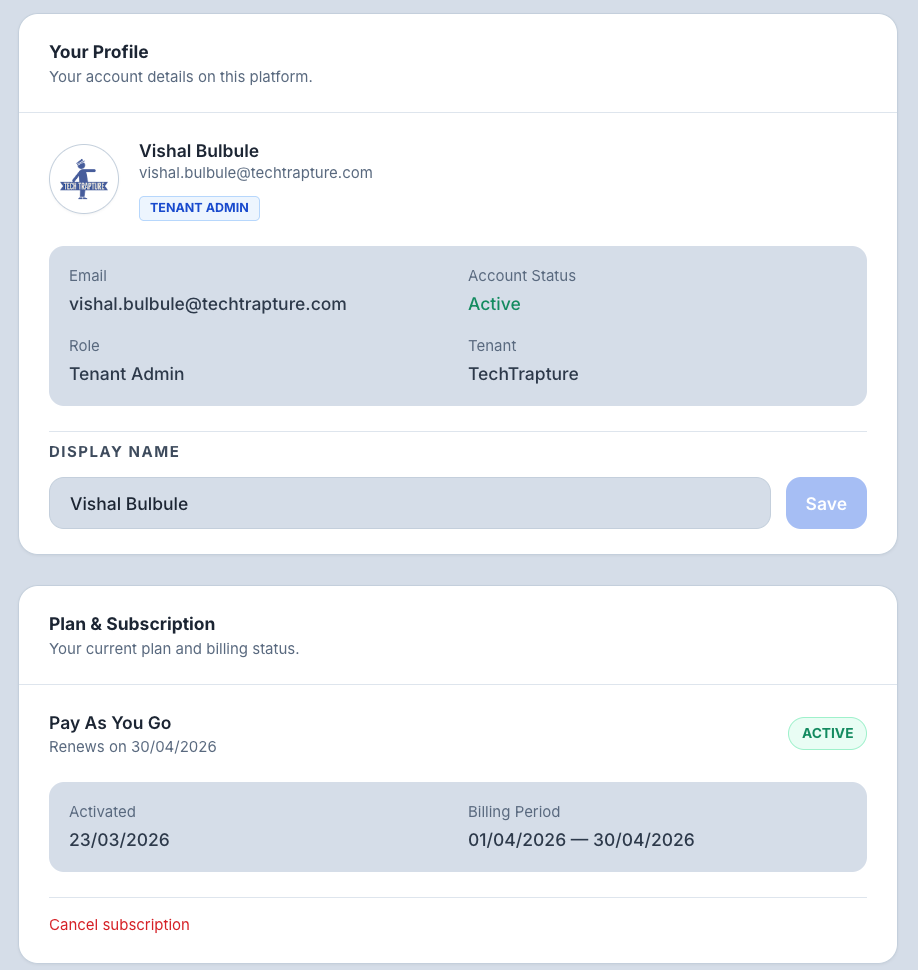
What's in Settings
| Section | Who Can Access | What It Does |
|---|---|---|
| Your Profile | All users | View your account details and edit your display name |
| Plan & Subscription | All users (view) / Admin (manage) | View current plan status, trial period, and renewal dates |
| AgentGuard | Tenant Admin only | Toggle AgentGuard on/off and configure alert notifications |
| API Keys | Tenant Admin only | Create and manage programmatic access keys |
| Payment History | Tenant Admin only | View all past payments and invoices |
| Tenant Info | Tenant Admin only | View tenant name, slug, and ID |
| Contact Support | All users | Navigate to the support page |
| Danger Zone | Tenant Admin only | Permanently delete the tenant |
Your Profile
Visible to all users. Shows your account details for this platform:
| Field | Description |
|---|---|
| Display Name | Your name as shown to other users — editable |
| Your login email address | |
| Role | Your role in this tenant (Tenant Admin or Tenant User) |
| Account Status | Active or Inactive |
Click Save after editing your display name.
Plan & Subscription
Shows the current subscription status for your tenant.
| Status | What It Means |
|---|---|
| Trialing | 14-day free trial active — full access |
| Active | Paid subscription active |
| Pending Renewal | Billing period ended, within grace period — access continues |
| Expired | Trial or grace period ended, no active payment |
| Cancelled | Subscription was explicitly cancelled |
Tenant Admins can cancel an active subscription or renew an expired one from this section.
For full details on plans and access gating, see Subscription & Feature Gating.
AgentGuard (Admin only)
Control AI safety monitoring for your entire tenant.
| Setting | What It Does |
|---|---|
| AgentGuard On/Off | Enables or disables real-time prompt and response safety scanning for all agents |
| Harmful Content Alerts | Receive notifications when AgentGuard blocks harmful content |
| PII Alerts | Receive notifications when personally identifiable information is detected |
| Policy Violation Alerts | Receive notifications when a policy rule is triggered |
Disabling AgentGuard turns off safety scanning for all agents in the tenant. Changes take effect immediately.
For full AgentGuard configuration, see AgentGuard.
API Keys (Admin only)
Generate API keys to access TraptureIQ programmatically.
- Only one active key is allowed at a time
- The full key is shown once at creation — copy and store it securely
- After creation, only the key prefix and metadata are visible
- Rate limit: 1,000 requests/hour (tied to subscription status)
Actions:
| Action | How |
|---|---|
| Create key | Click Create API Key, enter a name, copy the key shown |
| Revoke key | Click Revoke on the active key row |
Payment History (Admin only)
View all past payments for your subscription. Each record shows:
- Payment and order reference IDs
- Amount billed
- Billing period dates
- Plan name
- Payment status
Expand any row to see a full breakdown including prorated usage details.
Tenant Info (Admin only)
Read-only view of your tenant's core identifiers:
| Field | Description |
|---|---|
| Tenant Name | The display name of your workspace |
| Slug | The URL-safe identifier used in all platform URLs (e.g., /t/your-slug/) |
| Tenant ID | The unique system ID — useful when contacting support |
| Status | Active or Inactive |
Danger Zone (Admin only)
Permanently deletes the entire tenant. This action:
- Removes all agents, sessions, and conversation history
- Removes all team members' access
- Cancels the subscription
- Deletes all settings and configuration
- Cannot be undone
You must type the tenant slug to confirm before deletion proceeds.
Tips
- API key security — Treat your API key like a password. If compromised, revoke it immediately and create a new one.
- AgentGuard toggle — Disabling AgentGuard affects all agents instantly. Only disable temporarily for testing.
- Tenant deletion — There is no recovery after deleting a tenant. Export any data you need before proceeding.