Viewing Your Agents — Browse and Find Agents
Access: All users with Agents section enabled
The Agents page is where you browse all registered agents in your workspace, check their status, and start conversations.
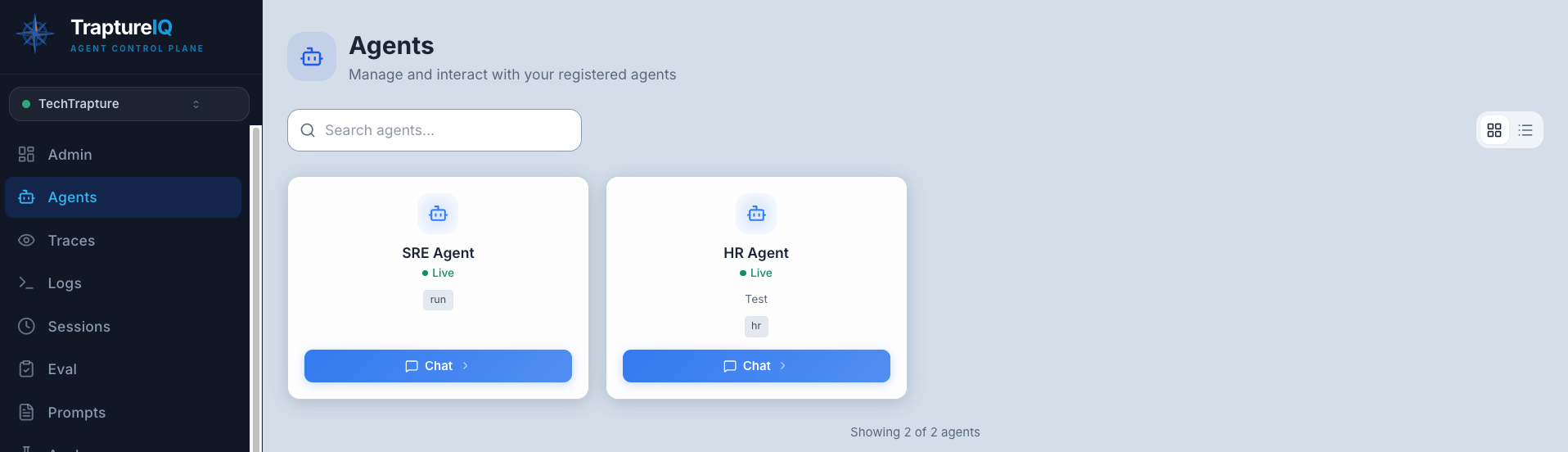
How to View Your Agents
Step 1: Open the Agents Page
Click Agents in the sidebar.
Step 2: Browse Agent Cards
Each agent is displayed as a card (in grid view) or a row (in list view) showing:
| Element | What It Shows |
|---|---|
| Agent Name | The display name set during registration |
| Description | Brief explanation of the agent's purpose |
| Framework Badge | The framework type (Google ADK) with color coding |
| Deployment Type | Where the agent runs (Cloud Run, Agent Engine, Custom) |
| Authentication Method | How TraptureIQ connects (Impersonation, TIQ Principal, Customer Key) |
| Tags | Organizational categories (e.g., production, support) |
| Status Indicator | A pulsing green dot for Active agents, grey dot for Inactive agents |
| Chat Button | Quick-access button to start a conversation with the agent |
Step 3: Switch Views
Toggle between Grid view and List view using the icons in the top-right of the toolbar:
- Grid view — Agents displayed as cards in a responsive grid (better for visual browsing)
- List view — Agents displayed as rows in a table (better for scanning many agents quickly)
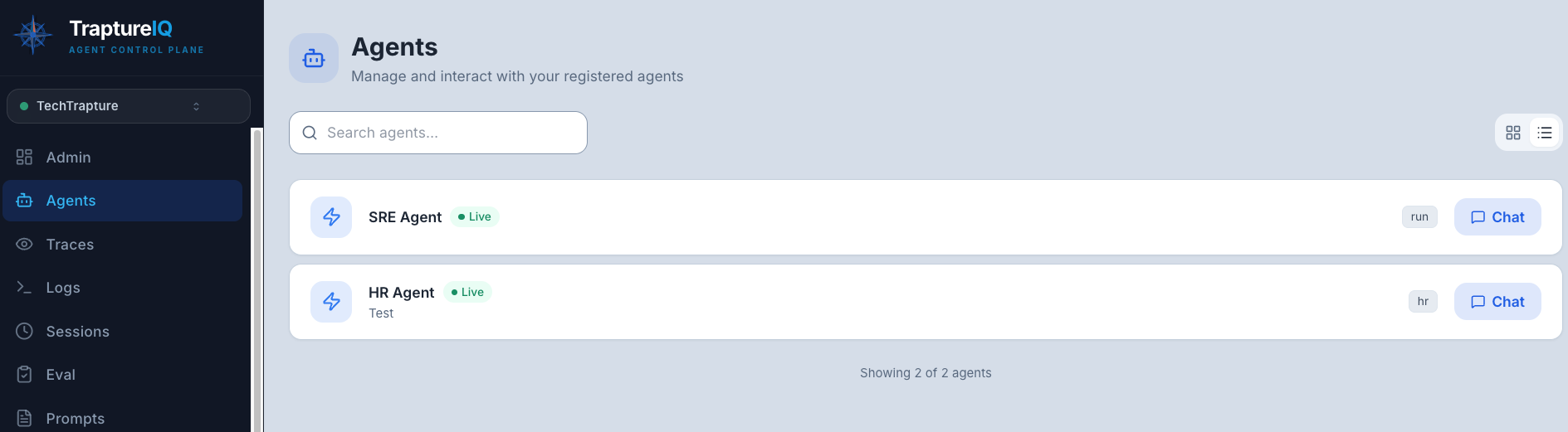
Step 4: Search and Filter
| Control | What It Does |
|---|---|
| Search bar | Filter agents by name or description. Start typing and results update instantly. |
| Status filter | Show All, Active-only, or Inactive-only agents. |
| Framework filter | Filter by framework. All agents are currently Google ADK. |
What Agent Statuses Mean
| Status | Indicator | What It Means |
|---|---|---|
| Active | Pulsing green dot | The agent is enabled. You can chat with it. |
| Inactive | Grey dot, greyed out card | The agent has been deactivated by an admin. It cannot be chatted with. |
Starting a Chat from the Agents Page
- Find the agent you want to talk to.
- Click the Chat with Agent button on the agent card.
- You'll be taken to the Chat interface with a new session ready.
Tips for Beginners
- Can't find your agent? Use the search bar to filter by name. If you still can't see it, your admin may not have granted you access to that specific agent. See Agent Access Control.
- Agent showing "Offline"? This means the underlying service isn't responding. Contact your Tenant Admin or check if the deployment is running.
- Many agents? Use the framework filter buttons and search bar to quickly narrow down the list.