Key Concepts
Before diving into TraptureIQ's features, it's important to understand the core building blocks of the platform. This page explains each concept in plain language with examples.
1. The Tenant (Your Workspace)
What it is: A Tenant is your private, isolated workspace inside TraptureIQ. Think of it like a "team account" — everything you do (conversations, agent registrations, logs, user management) happens inside a Tenant.
Why it matters:
- Complete isolation — No data (conversations, logs, traces, or users) is ever shared between Tenants. If your company has a "Sales Team" Tenant and an "Engineering Team" Tenant, they are completely separate.
- Custom identity — Your Tenant has a unique name and URL slug (e.g.,
acme-corp) that identifies your workspace.
Example: Your company "Acme Corp" creates a Tenant called "Acme AI Ops" with the slug acme-ai-ops. All team members invited to this Tenant share the same agents, logs, and analytics — but cannot see data from any other Tenant.
2. The Agent
What it is: An Agent is an AI service (chatbot, assistant, workflow, etc.) that your team has built and deployed on your own infrastructure. TraptureIQ doesn't host your agent — it connects to it.
Why it matters:
- External hosting — Your agents run on your own infrastructure (Google Cloud Run, Vertex AI, a custom server, etc.). TraptureIQ acts as the management layer on top.
- Zero-code registration — You don't need to add SDKs, libraries, or any code changes to your agent. Simply provide the API URL and deployment type.
- Built for Google ADK — TraptureIQ is purpose-built to connect with agents created using Google's Agent Development Kit, across Agent Engine, Cloud Run, and custom deployments.
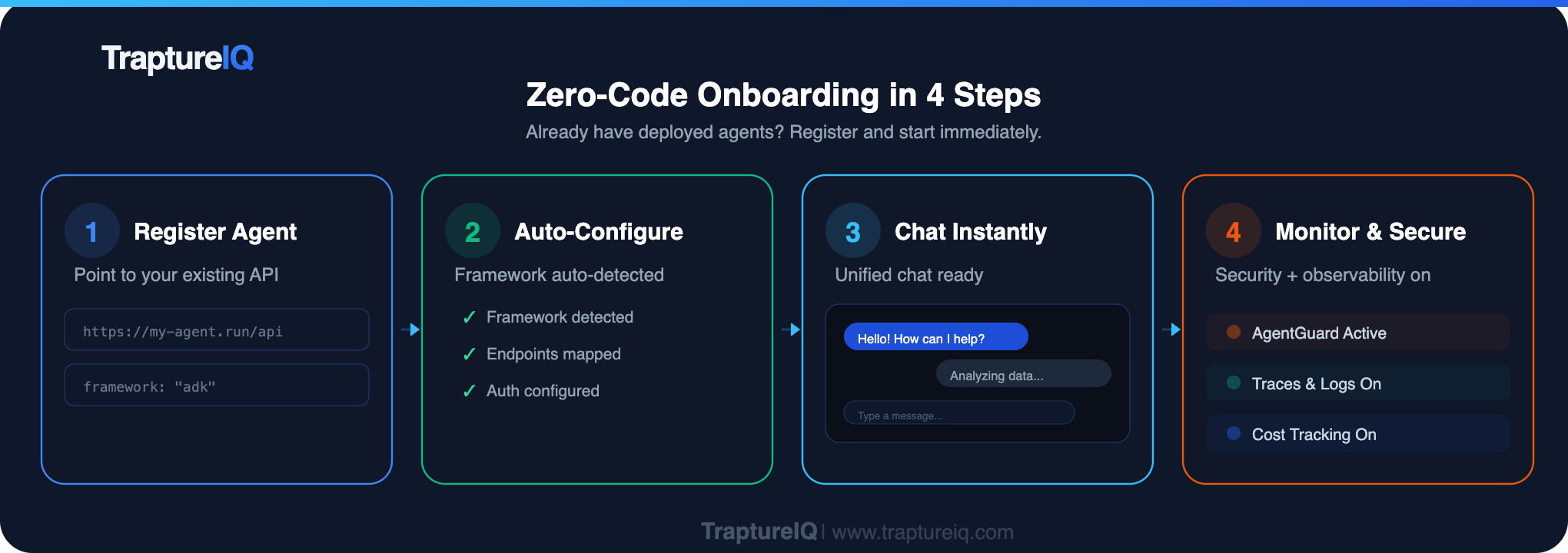
Example: You've built a customer support bot using Google ADK and deployed it on Cloud Run at https://my-support-bot-abc123.run.app. You register this URL in TraptureIQ, and your entire team can chat with it through a polished UI — with security, logging, and analytics built in.
3. Roles & Permissions
TraptureIQ uses Section-Level RBAC (Role-Based Access Control) with two roles:
Tenant Admin
The "power user" who manages everything. Tenant Admins can:
- Register, edit, and deactivate agents
- Invite and manage team members
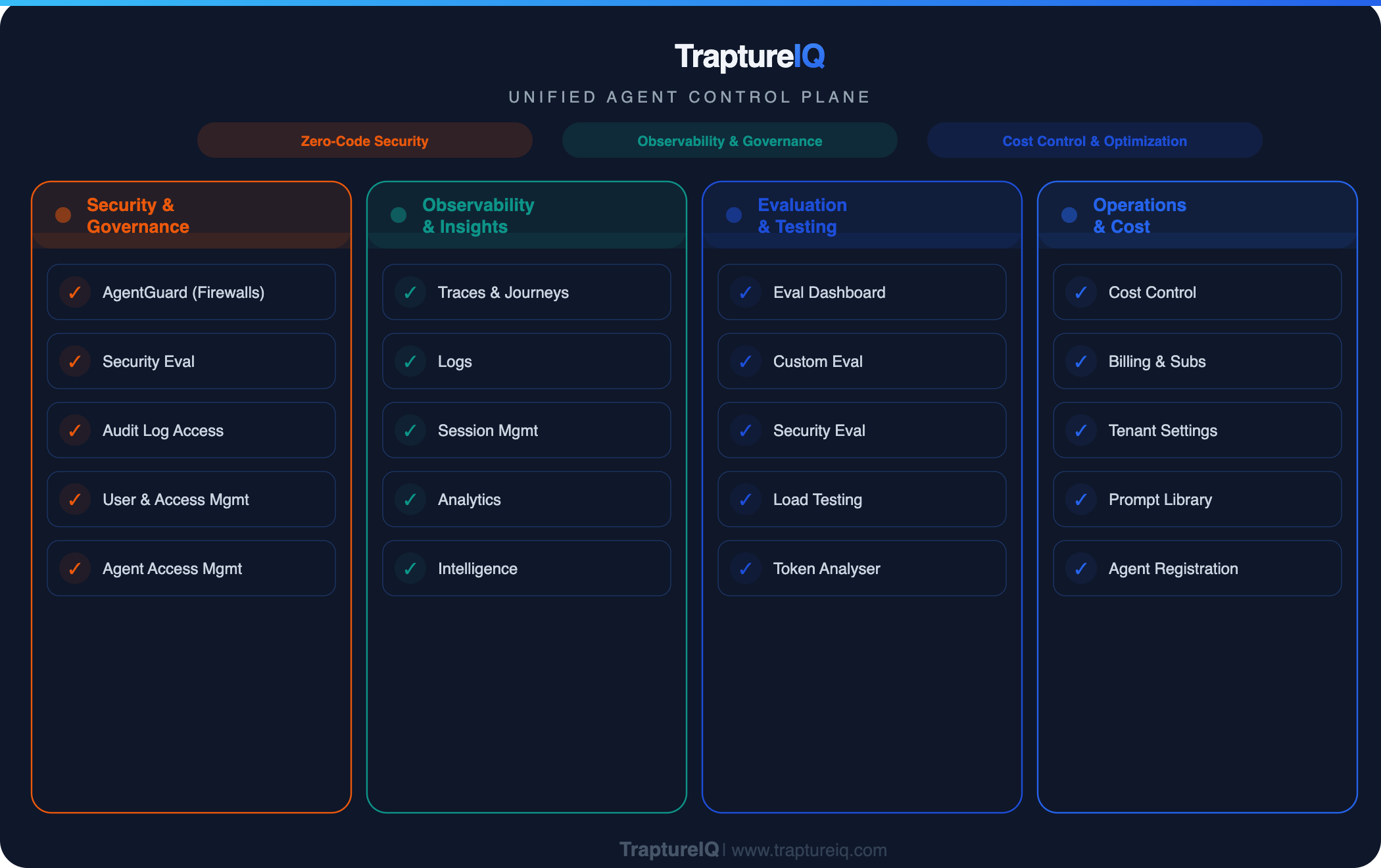
- Access all 13+ platform sections
- Configure billing, security firewalls, and permissions
- View analytics, costs, and audit trails
Tenant User
The standard role for everyday use. Tenant Users can:
- Chat with agents they've been assigned
- View their own conversation history
- Access platform modules that an admin has enabled for them
How Access Control Works
Access is controlled at two levels:
| Level | What It Controls | Who Configures It |
|---|---|---|
| Section-Level Access | Which sidebar modules a user can see (e.g., Traces, Logs, Eval, Prompts) | Tenant Admin toggles per user |
| Agent-Level Access | Which specific agents a user can chat with | Tenant Admin toggles per user per agent |
The 13 platform sections fall into three categories:
| Category | Sections | Visibility |
|---|---|---|
| Admin-Only | Admin Dashboard, Analytics, Cost Control, AgentGuard, Access Management | Only Tenant Admins can see these |
| Configurable | Agents, Traces, Logs, Eval, Sessions, Prompts, MCP Debug | Admins can enable/disable per user |
| Always Accessible | Analyser, Intelligence | Visible to all users regardless of role |
See the Roles guide for the full breakdown and comparison table.
4. Framework (How Your Agent Was Built)
The Framework tells TraptureIQ how to communicate with your agent. TraptureIQ is purpose-built for the Google ADK protocol:
| Framework | What It Is | When to Choose It |
|---|---|---|
| Google ADK | Google's Agent Development Kit for Vertex AI agents | Your agent was built using the ADK SDK and follows the ADK API spec |
Why it matters: TraptureIQ sends requests in the format ADK agents expect and parses their responses natively. If your agent is not built with ADK, the connection test will fail.
5. Deployment Types (Where Your Agent Runs)
The Deployment Type tells TraptureIQ where your agent is hosted:
| Deployment Type | Description | Authentication Required? |
|---|---|---|
| Agent Engine | Hosted on Vertex AI Agent Engine (Google-managed) | Yes — requires one of three auth methods |
| Cloud Run | A containerized agent deployed on Google Cloud Run | No — TraptureIQ connects directly over HTTPS |
| Custom | Any other server (on-premises, another cloud provider, local dev machine) | No — TraptureIQ connects directly over HTTPS |
6. Authentication Methods (Connecting to Your GCP Project)
When registering an agent deployed on Agent Engine (Vertex AI), you need to tell TraptureIQ how to authenticate to your Google Cloud project. Three options are available:
| Method | How It Works | Best For |
|---|---|---|
| Authorize with Impersonation (Recommended) | TraptureIQ temporarily "acts as" a service account you create in your project. No credentials are exchanged — only short-lived tokens. | Most organizations — maximum security with instant revocation |
| Authorize TraptureIQ Principal | You grant TraptureIQ's service account direct access to your Google Cloud project. | Teams that want the simplest, fastest setup |
| Upload SA Key | You upload a service account key JSON file. TraptureIQ encrypts and stores it. | Organizations with cross-domain permission restrictions |
See the Authentication Setup guide for detailed step-by-step instructions for each method.
Putting It All Together
Here's how everything connects:
- You create a Tenant (workspace) — this is your team's home base.
- You register Agents — point TraptureIQ to your existing AI services by providing the endpoint URL, framework, and authentication details.
- You invite Users — add team members and assign them roles (Admin or User).
- You configure Access — decide which platform sections and which agents each user can access.
- Your team starts using the platform — chatting with agents, reviewing traces and logs, running evaluations, and monitoring costs.