First-Time Sign In
This page covers every scenario you might encounter when signing in to TraptureIQ for the first time.
Scenario 1: You Were Invited by Your Admin
If someone in your organization already set up a TraptureIQ workspace and invited you, follow these steps:
- Check your email for an invitation from TraptureIQ. The subject line will mention your workspace name.
- Click the registration link in the email.
- Sign in using your Google account. Use the same email address the invite was sent to.
- Complete your account setup — your name and email will be pre-populated.
What you'll see after signing in:
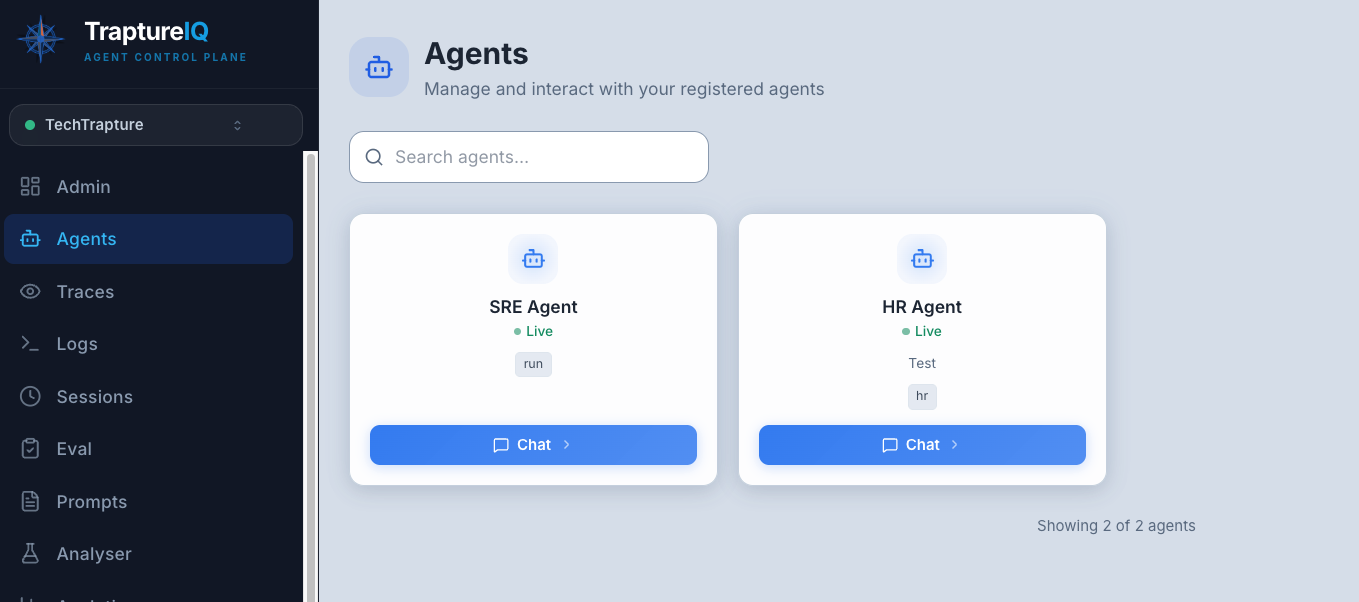
- You'll land on the Agents page within your Tenant workspace.
- The left sidebar will show only the sections your admin has enabled for you.
- If your admin assigned you specific agents, you'll see them as cards in the Agents view.
What your admin configured for you:
- Your role (Tenant Admin or Tenant User)
- Which sidebar sections you can access (e.g., Traces, Logs, Eval)
- Which agents you can see and chat with
If you don't see a sidebar section that you need access to, ask your Tenant Admin to enable it for you in Access Management → Section Access.
Scenario 2: You're Creating a New Account (No Invite)
If you're starting fresh and want to create your own workspace:
- Visit https://traptureiq.com.
- Click Sign in with Google and select your Google account.
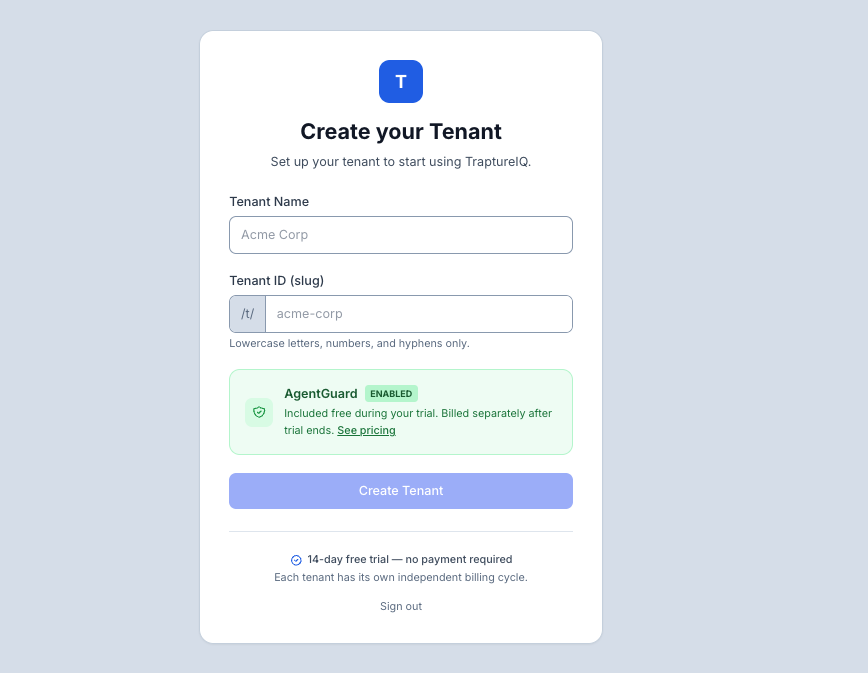
- Since you don't belong to any Tenant, you'll be prompted to create your first Tenant.
- Enter a Workspace Name (e.g., "My AI Lab") and a URL Slug (e.g.,
my-ai-lab). - Click Create Tenant.
What you'll see after creating your Tenant:
- You automatically become the Tenant Admin of your new workspace.
- You'll land on the Agent Management dashboard with an empty agent list.
- The full sidebar is visible with all sections (Admin, Agents, Traces, Logs, Sessions, Eval, Prompts, Analyser, Analytics, Cost Control, Intelligence, MCP Debug, AgentGuard, Access Management).
- A trial banner at the top shows your 14-day free trial status with days remaining.
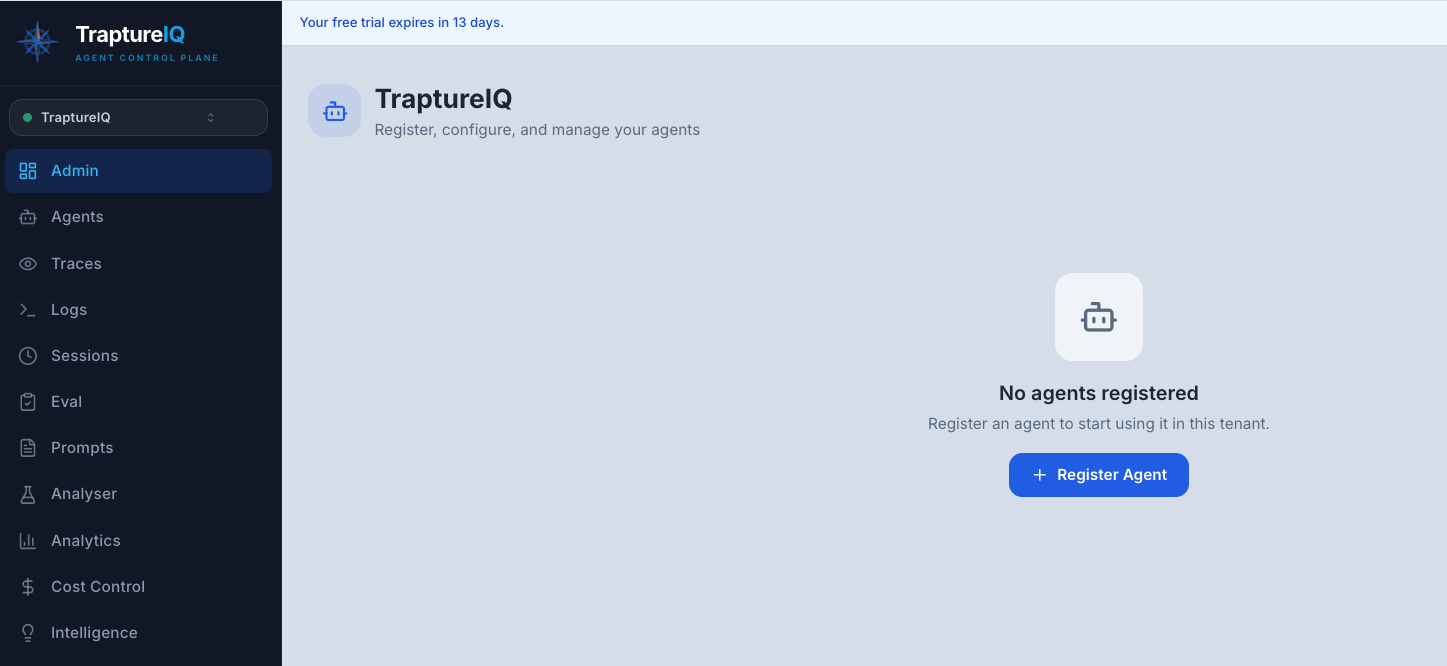
Your next step: Click + Register Agent to connect your first AI agent. See the Registering an Agent guide for detailed instructions.
After Sign In — What You'll See Based on Your Role
If You're a Tenant Admin
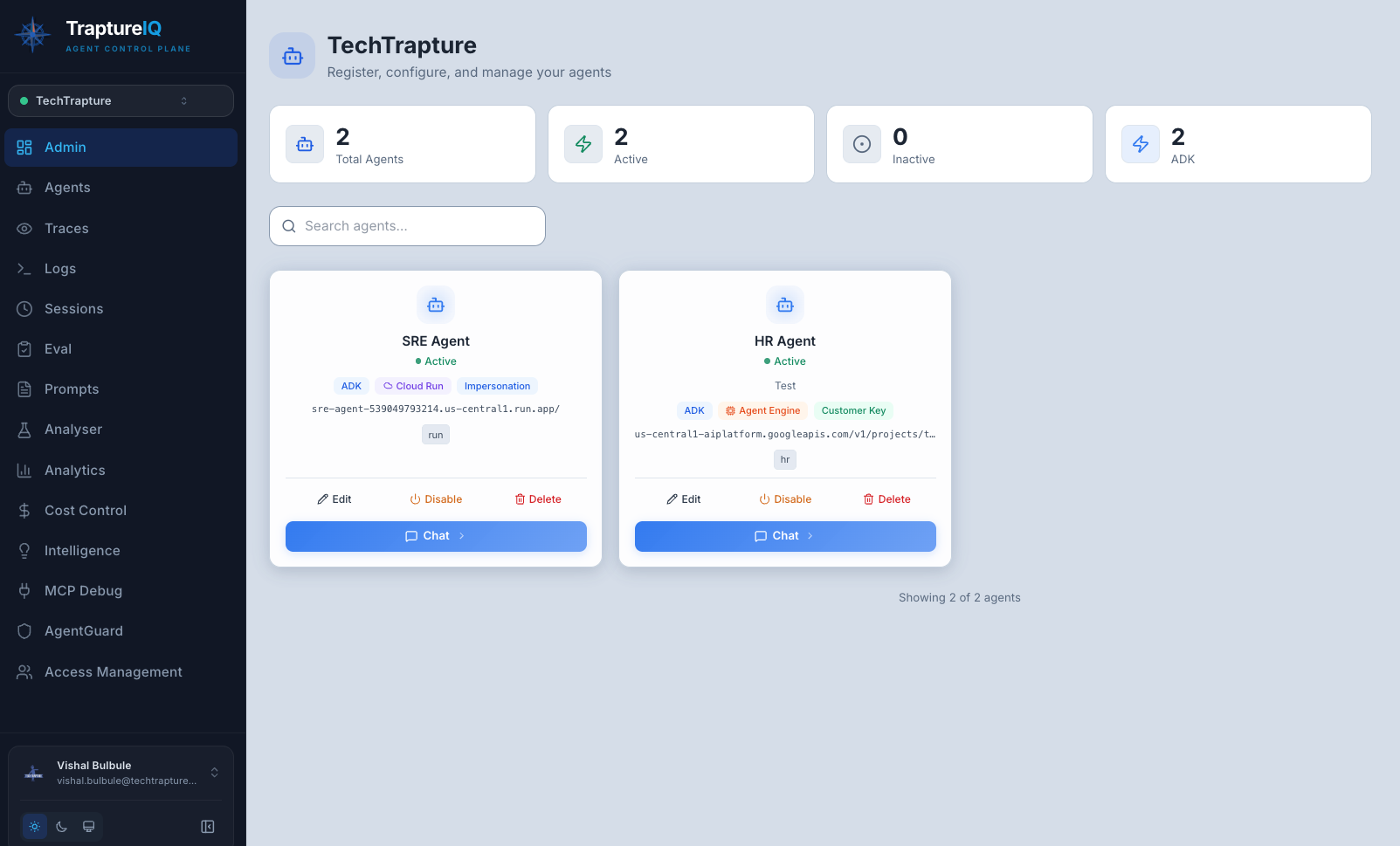
You have full access to the platform. Your sidebar shows all items:
| Sidebar Section | Purpose |
|---|---|
| Admin | Dashboard with agent statistics, quick actions, and overview |
| Agents | Browse all registered agents, start chats |
| Traces | Debug agent execution step by step |
| Logs | View system and agent logs with severity filtering |
| Sessions | Review all chat session history across users |
| Eval | Run quality, security, and load tests on agents |
| Prompts | Manage versioned prompt templates |
| Analyser | Count tokens and estimate costs for any text |
| Analytics | View usage dashboards — request volume, latency, errors |
| Cost Control | Track token costs per agent and user |
| Intelligence | Understand agent reasoning patterns |
| MCP Debug | Test MCP server connections and tools |
| AgentGuard | Configure security firewalls and monitor safety events |
| Access Management | Manage users, agent access, permissions, and settings |
If You're a Tenant User
Your sidebar shows only sections your admin has enabled. Common default sections include:
- Agents — browse and chat with your assigned agents
- Analyser — always available, count tokens for any text
- Intelligence — always available, view agent reasoning insights
Other sections (Traces, Logs, Sessions, Eval, Prompts, MCP Debug) depend on your admin's configuration.
Switching Between Workspaces
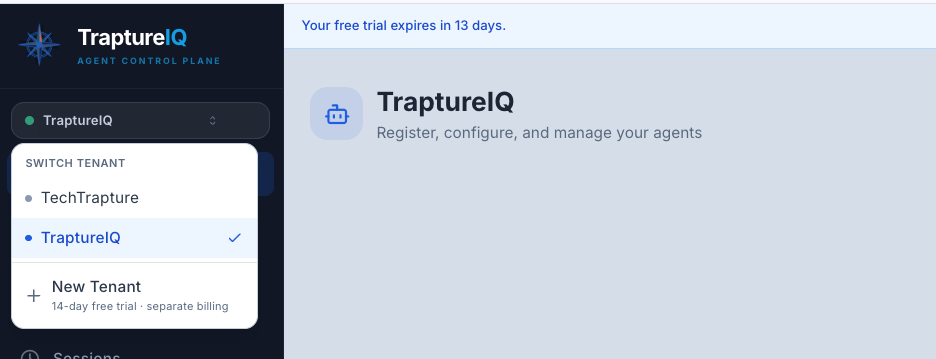
If you belong to multiple Tenants (e.g., you were invited to a colleague's workspace and also created your own):
- Look for the Tenant Switcher dropdown in the sidebar (near the top or in the user menu).
- Click it to see all workspaces you belong to.
- Select the workspace you want to switch to.
What happens: The page reloads with the selected workspace's data. Your role and permissions may differ between workspaces.
Changing Your Theme
TraptureIQ supports light and dark mode:
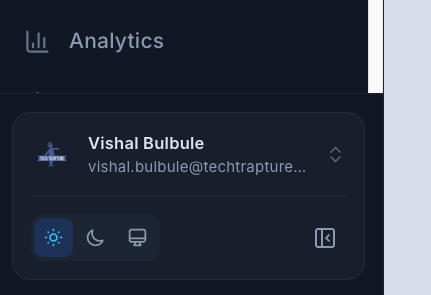
- Find the theme toggle button at the bottom of the sidebar (sun/moon icon).
- Click it to switch between light and dark themes.
- Your preference is saved and persists across sessions.