Custom Evaluation — Test Agent Response Quality
Access: Users with Eval permission enabled by their Admin
Custom Evaluation lets you build structured test sets ("golden datasets") and measure how well your agents respond. You provide questions and optionally expected answers, select quality metrics, and the system scores every response automatically.
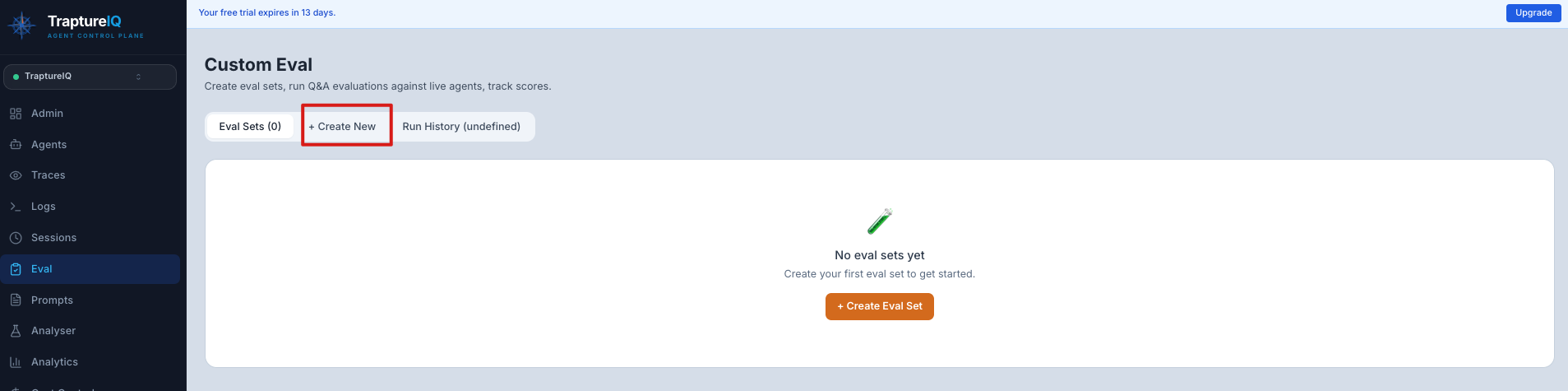
What is Custom Evaluation?
Think of it as creating a final exam for your AI agent. You write the questions, define what a good answer looks like, and the system grades the agent's responses across multiple dimensions (accuracy, coherence, safety, etc.).
Why it matters:
- Catch quality regressions before your users do
- Measure improvement over time as you refine your agent's prompt
- Create repeatable, objective quality benchmarks
- Validate that your agent handles domain-specific questions correctly
How to Create an Eval Set
Step 1: Navigate to Custom Eval
Go to Eval in the sidebar → click the Custom Eval tab.
Step 2: Create a New Eval Set
- Click New Eval Set.
- Enter a name for your eval set (e.g., "Support Bot Quality Test", "Sales FAQ Validation").
- Select the target agent — the agent whose responses will be evaluated.
Step 3: Add Test Cases
Each test case consists of:
- Prompt (required) — The question or input to send to the agent
- Expected Answer (optional) — The "golden" answer that represents the ideal response. Some metrics require this; others don't.
Example test cases:
| Prompt | Expected Answer |
|---|---|
| "What are your business hours?" | "Our business hours are Monday to Friday, 9 AM to 5 PM EST." |
| "How do I reset my password?" | "Go to Settings > Security > Reset Password, then follow the email instructions." |
| "Tell me a joke" | (leave blank — this tests open-ended response quality) |
You can add and delete test cases within the eval set at any time.
Step 4: Select Evaluation Metrics
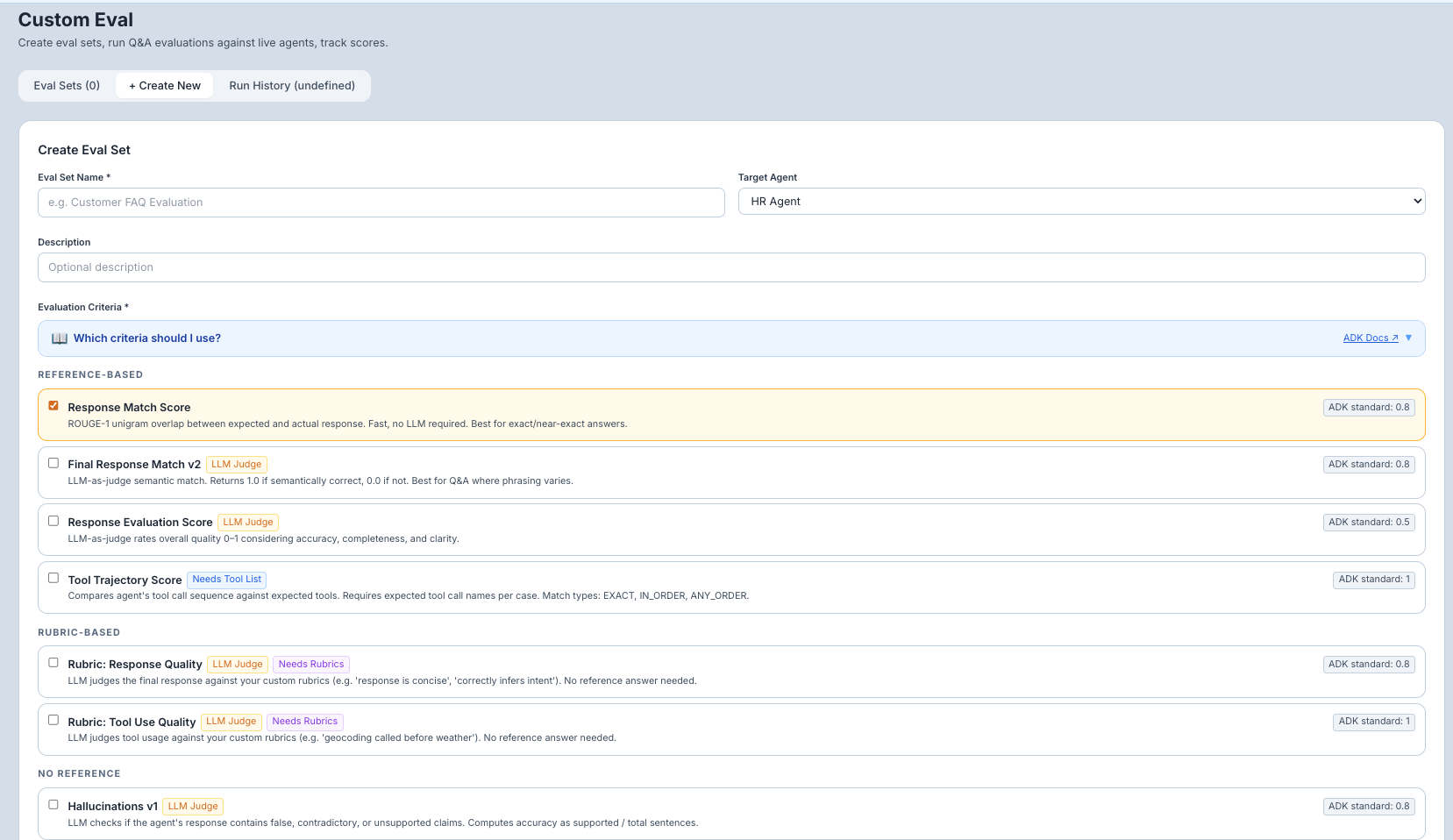
Choose one or more metrics to score the agent's responses. Each metric measures a different aspect of quality:
| Metric | What It Measures | Requires Expected Answer? | Best For |
|---|---|---|---|
| response_match_score | ROUGE-1 text similarity between the agent's response and the expected answer. Fast, no LLM needed. | Yes | When exact phrasing matters (FAQs, factual queries) |
| final_response_match_v2 | Semantic similarity — checks if the meaning is the same, even if the wording differs. Uses an LLM. | Yes | When the meaning matters more than exact words |
| response_evaluation_score | Overall response quality rating. Uses an LLM to judge coherence, helpfulness, and completeness. | No | General quality assessment for any type of response |
| coherence | Is the response logically structured and easy to follow? | No | Complex, multi-part answers |
| fluency | Is the response grammatically correct and natural-sounding? | No | Customer-facing agents where tone matters |
| groundedness | Is the response grounded in source material, not making up facts? | No | Agents that retrieve and summarize external data |
| hallucinations_v1 | Does the response contain unsupported claims or fabrications? | No | Factual agents where accuracy is critical |
| safety_v1 | Is the response free from harmful, hateful, or dangerous content? | No | All agents — safety should always be tested |
| tool_trajectory_avg_score | Did the agent call the correct tools in the correct order? | Yes (tool expectations) | Agents that use tools (search, database, calculators) |
| rubric_based_final_response_quality_v1 | Score the response against a custom rubric you define. | Yes (rubric) | When you have specific, domain-specific quality criteria |
Step 5: Build a Rubric (Optional)
For rubric-based metrics, use the Rubric Builder to define your own pass/fail rules. For example:
- "The response must mention the refund policy"
- "The response must not include any specific dollar amounts"
- "The response must recommend contacting support for complex issues"
Step 6: Save the Eval Set
Click Save. Your eval set is stored and ready to run.
How to Run an Eval Set
- Open your eval set from the Custom Eval page.
- Click Run Eval.
- What happens: The system sends every test case prompt to the agent, collects the responses, and scores each one against your selected metrics.
- How long it takes: Depends on the number of test cases and the agent's response time. A 10-case eval set typically takes 1–3 minutes.
Viewing Results
Results appear in the Run History panel:
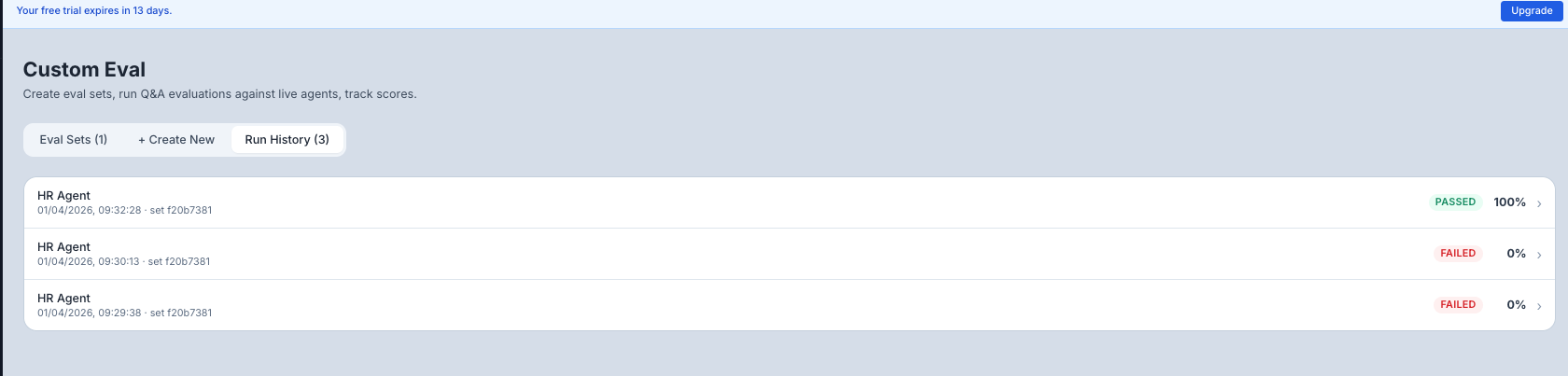
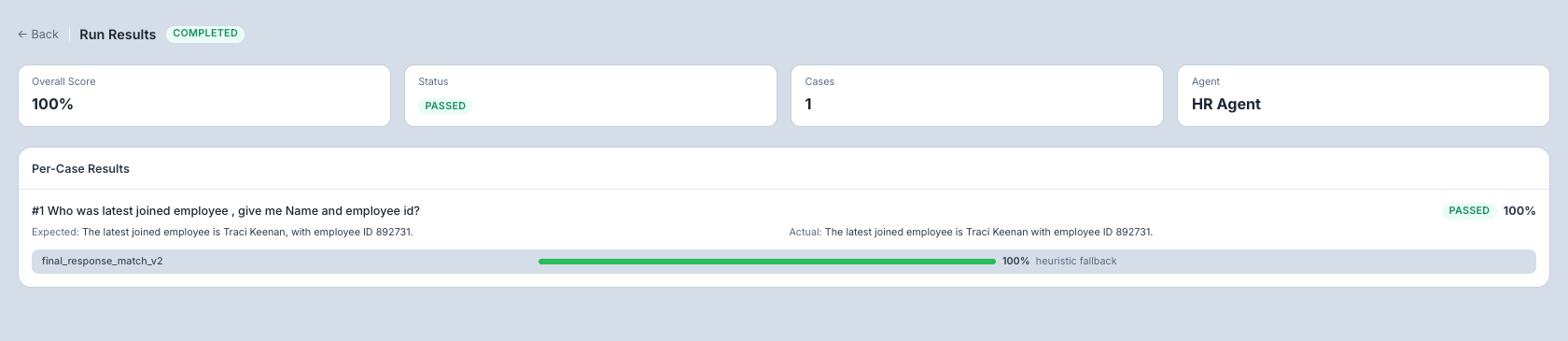
Overall Score:
- A summary score (typically 0–1 or 0–100 depending on the metric) showing how well the agent performed across all test cases.
- Displayed with a progress bar for visual clarity.
Per-Case Breakdown: Click any run to see individual results:
| Column | What It Shows |
|---|---|
| Test Case | The prompt that was sent |
| Agent Response | What the agent actually replied |
| Expected Answer | Your golden answer (if provided) |
| Score | The metric score for this specific test case |
| Pass/Fail | Whether the score meets the threshold |
Understanding Your Scores
| Score Range | Quality Level | What to Do |
|---|---|---|
| 0.9–1.0 (or 90–100) | Excellent | Your agent handles these cases well. Consider adding harder test cases. |
| 0.7–0.9 (or 70–90) | Good | Solid performance with room for improvement. Review the lower-scoring cases. |
| 0.5–0.7 (or 50–70) | Needs Improvement | Significant quality gaps. Analyze which cases failed and why. |
| Below 0.5 (or below 50) | Poor | The agent is struggling with these cases. Review the system prompt and agent configuration. |
Common Use Cases
| Scenario | How to Set It Up |
|---|---|
| "I want to test if my FAQ bot gives correct answers" | Create test cases with FAQ questions and expected answers. Use response_match_score or final_response_match_v2. |
| "I want to check if responses are coherent and well-written" | Create test cases with various prompts (no expected answers needed). Use coherence + fluency. |
| "I want to ensure my agent doesn't hallucinate" | Create test cases with factual questions. Use groundedness + hallucinations_v1. |
| "I want to verify my agent uses tools correctly" | Create test cases that require tool use. Use tool_trajectory_avg_score. |
| "I changed my agent's prompt and want to check for regressions" | Re-run your existing eval set and compare the new scores against previous runs in the history. |
Tips for Beginners
- Start with 5–10 test cases — Cover the most common and most important use cases for your agent.
- Include both easy and hard cases — Easy cases verify basic functionality; hard cases reveal the agent's limits.
- Use multiple metrics — Don't rely on a single metric. Use a combination (e.g., response_match + coherence + safety) for a complete picture.
- Re-run after changes — Every time you update your agent's system prompt, re-run your eval set to check for regressions.
- Grow your eval set over time — When you find a bug in production, add it as a new test case to prevent regressions.